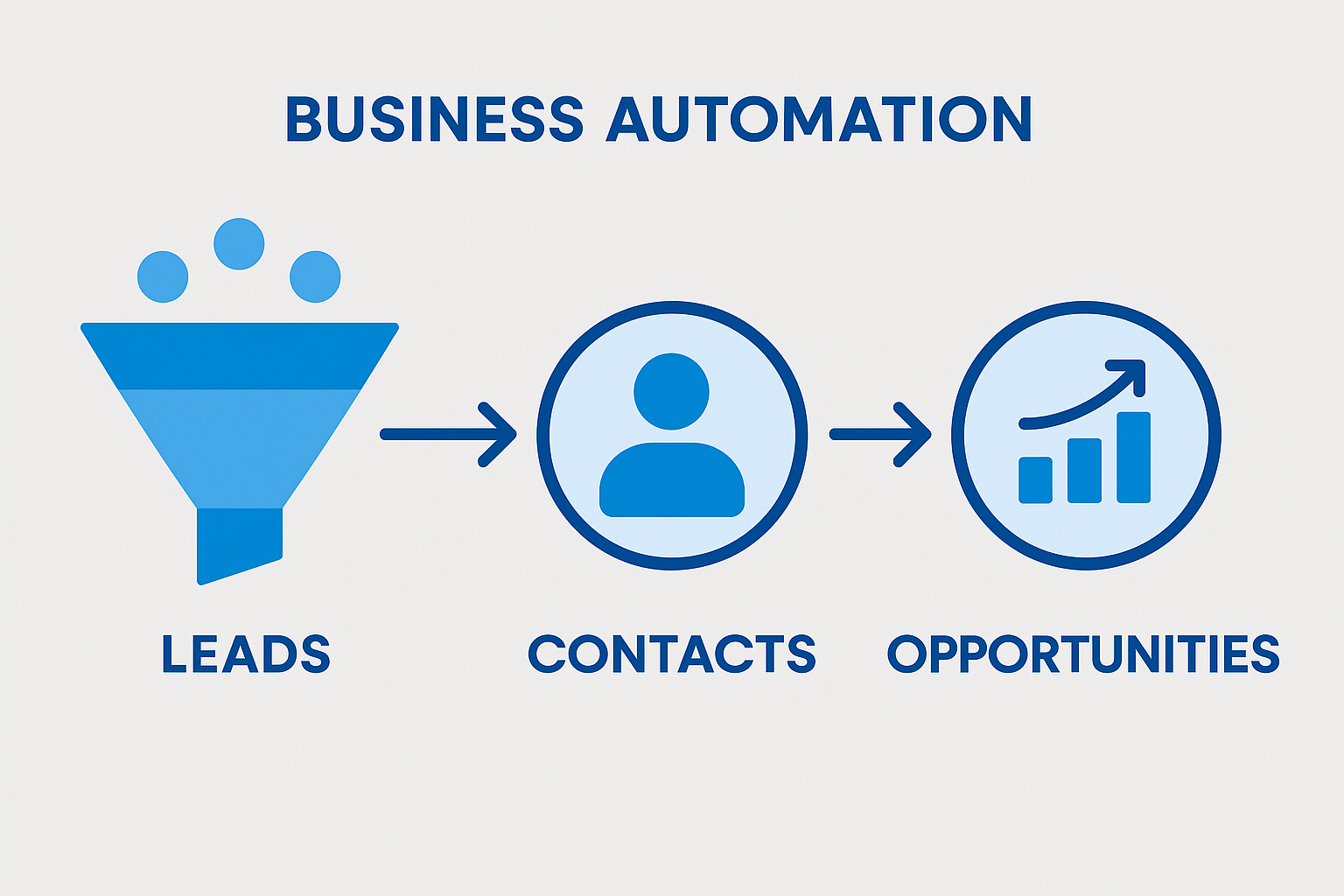
🤖 Auto Convert: Lead Conversion Automation Guide
🎯 What You’ll Learn: Automate lead conversion at scale with built-in duplicate prevention, smart field mapping, and intelligent routing.
Auto Convert eliminates manual lead conversion bottlenecks by automatically converting qualified leads to Contacts, Accounts, and Opportunities based on your criteria. Convert 10,000+ leads with one click while preventing duplicates and preserving data integrity.
💡 Key Benefit: Reduce lead conversion time from 2-3 minutes per lead to milliseconds. That’s a 10,000x speedup!
🎯 Core Capabilities
🤖 Automation Rules
- Criteria-Based: Convert when conditions met
- Scheduled: Daily/weekly batch conversions
- Real-Time: Convert instantly on status change
- Bulk Operations: Convert thousands at once
- Multi-Rule Support: Different rules for different lead types
🚫 Duplicate Prevention
- Email Matching: Detect existing contacts by email
- Company Matching: Link to existing accounts
- Phone Matching: Secondary matching criteria
- Custom Field Matching: Use your own unique identifiers
- Fuzzy Logic: Handle typos and variations
🗺️ Field Mapping
- Standard Mapping: Lead → Contact automatic mapping
- Custom Fields: Map Lead custom fields to Contact/Account
- Value Transformation: Apply formulas during mapping
- Conditional Mapping: Map based on conditions
- Multi-Object: Map to Contact, Account, Opportunity
👥 Assignment Rules
- Round-Robin: Distribute evenly across team
- Territory-Based: Assign by geography
- Lead Source: Route based on origin
- Skill-Based: Match to specialized reps
- Queue Assignment: Route to team queues
📋 Setting Up Your First Conversion Rule
Step 1: Define Conversion Criteria
- Open Auto Convert from App Launcher
- Click “New Conversion Rule”
- Name: “Qualified Lead Auto Conversion”
- Set Trigger Conditions:
- Lead Status = “Qualified”
- Email is not blank
- Company is not blank
- Lead Score ≥ 75 (optional)
Step 2: Configure Duplicate Matching
- Enable “Check for Duplicates”
- Contact Matching Fields:
- Email (exact match – 100%)
- FirstName + LastName (fuzzy – 90%)
- Account Matching Fields:
- Company Name (fuzzy – 85%)
- Website Domain (exact – 100%)
- Duplicate Action:
- If Contact exists: Update Contact + link to Account
- If Account exists: Create Contact + link to existing Account
- If both exist: Skip conversion + log warning
Step 3: Map Fields
| Lead Field | Maps To | Transformation |
|---|---|---|
| Contact.Email | LOWER(Email) | |
| Company | Account.Name | Direct copy |
| Phone | Contact.Phone | FORMAT_PHONE(Phone) |
| LeadSource | Opportunity.LeadSource | Direct copy |
| AnnualRevenue | Opportunity.Amount | Direct copy |
| Industry | Account.Industry | Direct copy |
Step 4: Opportunity Settings
- Create Opportunity: Yes (recommended for sales-ready leads)
- Opportunity Name: {Company} – {FirstName} {LastName}
- Stage: “Qualification” or “Prospecting”
- Close Date: TODAY() + 30 days
- Probability: 25% (adjust for your sales process)
Step 5: Save & Activate Rule
- Click “Save” to store configuration
- Toggle “Active” switch to enable rule
- Rule begins processing matching leads immediately
⚡ Bulk Conversion Operations
Converting Leads in Batches
- Navigate to “Bulk Convert” tab
- Select Conversion Rule: Choose from your saved rules
- Define Scope:
- Option A: All leads matching rule criteria
- Option B: Custom SOQL query
- Option C: Upload CSV of Lead IDs
- Preview Leads: Review list before converting
- Execute Conversion: Click “Convert Selected Leads”
- Monitor Job: Track progress in real-time
Performance Expectations
| Lead Count | Conversion Time | API Method |
|---|---|---|
| 1-1,000 | 1-3 minutes | REST API |
| 1,001-10,000 | 10-20 minutes | REST API (batched) |
| 10,001-50,000 | 30-60 minutes | Bulk API |
| 50,001+ | 1-3 hours | Bulk API (parallel) |
✅ Best Practices
Conversion Rule Design
- Strict Criteria: Only convert truly qualified leads
- Required Fields: Ensure Email & Company are populated
- Lead Scoring: Use lead score as conversion gatekeeper
- Source Tracking: Map Lead Source to all created records
- Custom Fields: Map all valuable custom data
Duplicate Handling Strategy
| Scenario | Recommended Action |
|---|---|
| Contact exists (same email) | Update Contact with new data, link to Account |
| Account exists (same company) | Create new Contact, link to existing Account |
| Both Contact & Account exist | Skip conversion OR update existing records |
| No duplicates found | Create new Contact, Account, Opportunity |
Testing Checklist
- ☑️ Test in sandbox with sample leads first
- ☑️ Verify field mappings preserve data correctly
- ☑️ Test duplicate detection with known duplicates
- ☑️ Confirm opportunity creation settings
- ☑️ Validate assignment rules work as expected
- ☑️ Check that validation rules don’t block conversion
- ☑️ Run small batch (10-50 leads) in production before bulk
🎥 Related Video Tutorial
🎬 Auto Convert Demonstration
Watch complete setup and execution of automated lead conversion with duplicate prevention.
Duration: 15 minutes | Difficulty: Intermediate
🔧 Troubleshooting
Problem: Leads not converting automatically
Check:
- Is the conversion rule active?
- Do leads meet ALL trigger criteria?
- Are required fields (Email, Company) populated?
- Check error logs for validation failures
- Verify user has conversion permissions
Problem: Duplicates still being created
Solutions:
- Lower fuzzy match threshold from 90% to 80-85%
- Add additional matching fields (Phone, Website)
- Standardize data before conversion (use Mass Update to clean data)
- Review match logs to see why duplicates weren’t detected
- Consider exact email matching as primary criteria
Problem: Custom field data not mapping
Verify:
- Custom fields exist on target object (Contact/Account)
- Field API names match exactly (Field__c)
- Data types are compatible (Text → Text, Number → Number)
- User has field-level security access
- Review field mapping configuration in rule
📚 Related Documentation
Last updated: March 2026 | Back to Documentation | Home