ZaapIT / Quick Start Guide
Get started with ZaapIT in Salesforce
Find the apps in Salesforce, then complete one carefully reviewed duplicate merge. Start with a small set of records so you can confirm the result before scaling up.
Install and confirm access
Install the ZaapIT package in the Salesforce org where you will work, then confirm the people who need it have the appropriate app and object permissions.
- Use the ZaapIT installation instructions for the correct package and org.
- Ask your Salesforce admin to check app access, relevant object permissions and any required license assignment.
- Sign in to Salesforce Lightning with the user who will perform the first review.
Find ZaapIT in the App Launcher
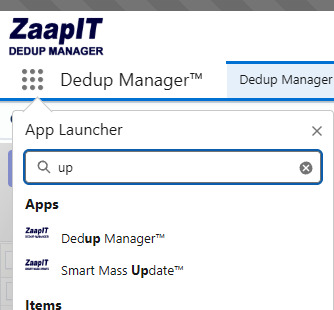
In Salesforce Lightning, select the nine-dot App Launcher at the upper left. Choose View All if the app is not in the short list, then search using any of these names:
The Apps results should include Dedup Manager™ and Smart Mass Update™ when both apps are available to your user. Open Dedup Manager™ for the first dedupe workflow below.
Ask your Salesforce admin to check the installation and your assigned access. You can also email support@zaapit.com.
Create your first dedupe
Use a premade matching tab in Dedup Manager, review a small group, and confirm the surviving record in Salesforce.
- Open Dedup Manager™ from the App Launcher.
- From the matching tabs at the top of the app, choose Contacts by Email and wait for the possible duplicate groups to load.
- Open a small group and confirm the records truly represent the same person. Do not merge a group just because the email matches.
- For each group you intend to merge, choose the record to keep and mark it as Master.
- Review the merge strategy for important fields so the values you need will remain on the master record.
- Use Mass Merge, confirm the action, then check the surviving Contact in Salesforce.

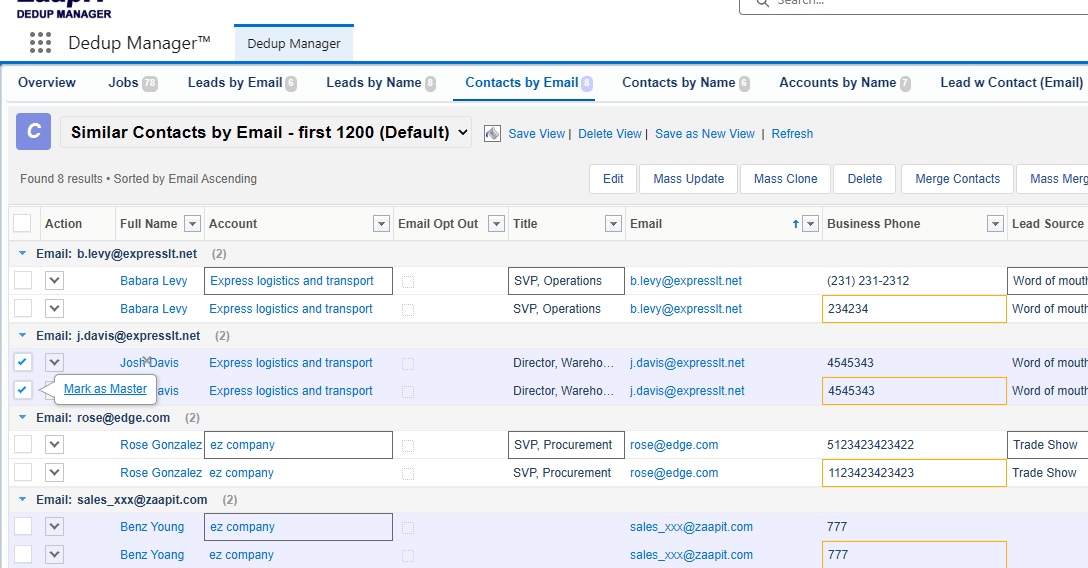
For a closer look at field behavior, open the merge strategy screenshot. The Dedup Manager guide covers more advanced matching and merge decisions.
Review the date and settings
Duplicate groups are suggestions for review. A careful first pass establishes a pattern you can trust for larger jobs.
- Start small. Review a few clear groups before processing a larger selection.
- Confirm identity. Compare names and other relevant fields, especially where people share an email address.
- Choose the survivor. Mark the correct master record in every selected group.
- Check field strategies. Know which values will be retained, copied or combined.
- Verify in Salesforce. Open the surviving record after the merge and check the important fields and related information.
- Know the undo path. ZaapIT provides Undo Merge/Unmerge for Mass Merge jobs if you need to reverse a merge. Availability depends on your license; review carefully before merging.

Choose your next task
Once you have verified a first dedupe, use the focused guide for the workflow you need next.