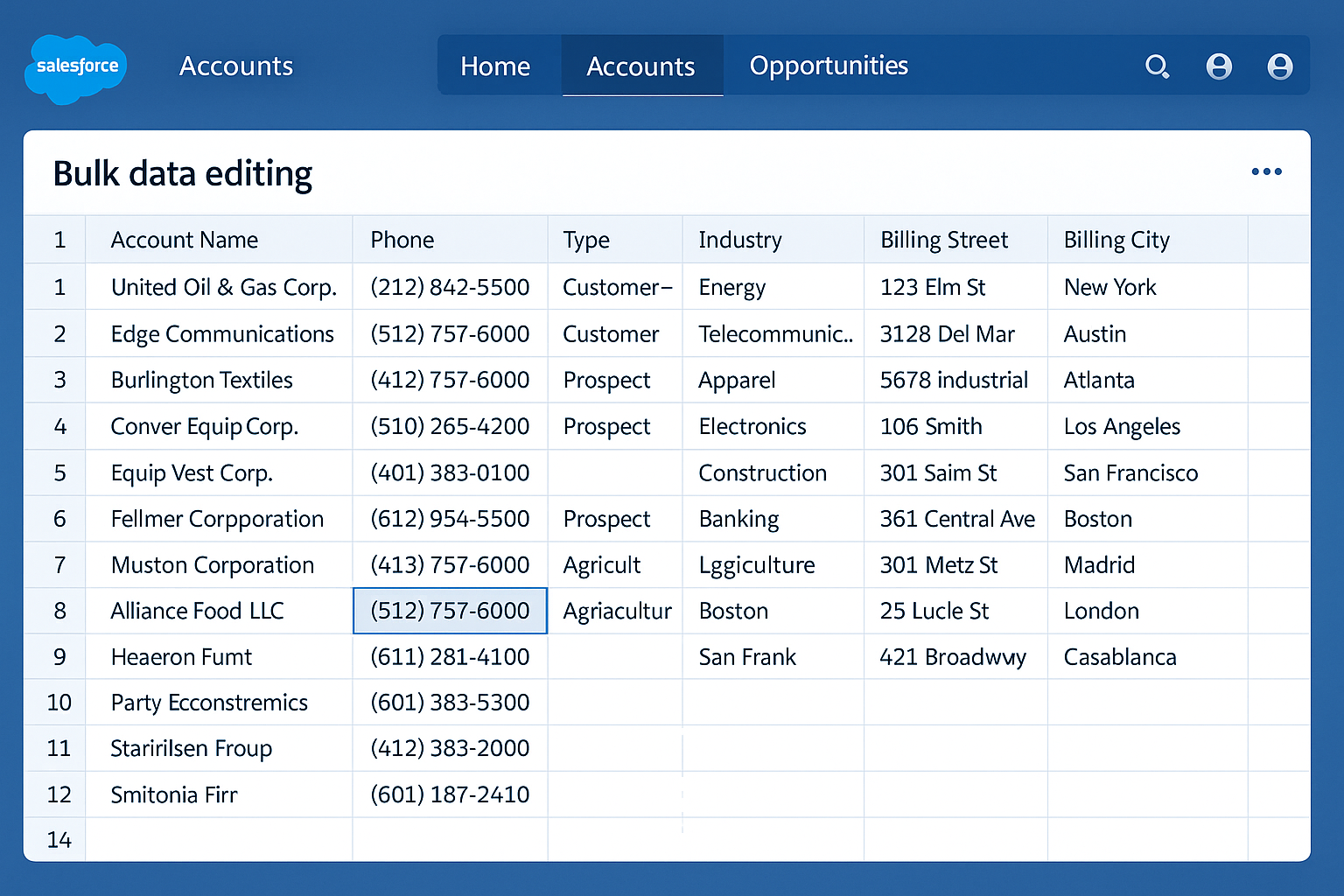
📝 Mass Inline Edit: Spreadsheet-Style Editing Guide
🎯 What You’ll Learn: Edit thousands of Salesforce records in Excel-style grid with copy/paste, fill-down, keyboard shortcuts, and real-time validation.
Mass Inline Edit brings spreadsheet productivity to Salesforce. Edit multiple records simultaneously with familiar Excel shortcuts, instantly validate changes, and save bulk edits with confidence.
🎯 Key Features
📊 Grid Interface
- Spreadsheet View: Rows & columns like Excel
- Sortable Columns: Click headers to sort
- Filterable Data: Quick filters per column
- Customizable: Choose which fields to display
- Resizable Columns: Drag to adjust width
⌨️ Keyboard Navigation
- Tab: Move right between cells
- Enter: Move down to next row
- Arrow Keys: Navigate grid
- Ctrl+C/V: Copy/paste values
- Ctrl+D: Fill down selected cells
✅ Real-Time Validation
- Field Type Checking: Enforce data types
- Required Fields: Prevent blank values
- Picklist Validation: Only valid options
- Lookup Validation: Verify related records exist
- Custom Rules: Enforce validation rules
💾 Bulk Save
- Save All: Commit all changes at once
- Changed Cell Highlighting: Yellow = modified
- Error Handling: Save successful records
- Rollback Support: Undo if issues occur
- Progress Tracking: Real-time save status
⌨️ Complete Keyboard Shortcuts
| Shortcut | Action | Description |
|---|---|---|
Tab |
Move Right | Navigate to next cell in row |
Shift+Tab |
Move Left | Navigate to previous cell in row |
Enter |
Move Down | Navigate to cell below |
Shift+Enter |
Move Up | Navigate to cell above |
Ctrl+C |
Copy | Copy selected cell values |
Ctrl+V |
Paste | Paste to selected cells |
Ctrl+D |
Fill Down | Copy top value to all selected cells below |
Ctrl+Z |
Undo | Revert last change (before save) |
Ctrl+Y |
Redo | Reapply undone change |
Ctrl+S |
Save All | Commit all changes to Salesforce |
Esc |
Cancel Edit | Exit cell edit mode without saving |
Ctrl+F |
Find | Search for text in grid |
Ctrl+A |
Select All | Select all visible cells |
📋 Common Editing Scenarios
Scenario 1: Update Lead Status for 500 Records
- Open Lead list view
- Click “Mass Inline Edit”
- Select Status column
- Select all 500 rows (Ctrl+A)
- Right-click → “Apply Value to Selected”
- Choose “Qualified” from picklist
- Click “Save All”
- Result: 500 Leads updated in 45 seconds
Scenario 2: Copy Email to Custom Field
- Display both Email and Backup_Email__c columns
- Select entire Email column
- Press Ctrl+C to copy
- Click first cell in Backup_Email__c column
- Select down to last row (Shift+Ctrl+Down)
- Press Ctrl+V to paste
- Save changes
Scenario 3: Fill Down Owner Assignment
- Sort records by territory
- Select first 100 California leads
- In Owner cell, search for “Sarah Johnson”
- Select cells down (Shift+Click bottom cell)
- Press Ctrl+D to fill down
- Repeat for other territories
- Save all assignments
🔍 Field Type Handling
| Field Type | Editing Method | Validation |
|---|---|---|
| Text | Click & type freely | Max length enforced |
| Picklist | Dropdown or type to search | Must be valid option |
| Date | Calendar picker or type MM/DD/YYYY | Valid date format required |
| Number | Type numeric value | Numeric only, precision checked |
| Checkbox | Click to toggle | True/false only |
| Lookup | Type to search related records | Record must exist |
| Type email address | Valid email format required | |
| URL | Type URL | Valid URL format required |
📝 Step-by-Step: Edit Contact Statuses
Step 1: Launch Editor
- Navigate to Contacts tab
- Select a list view: “Recently Modified Contacts”
- Click “Mass Inline Edit” button (top right)
- Wait for grid to load (shows up to 200 records initially)
Step 2: Configure Columns
- Click “Choose Columns” button
- Select fields to display:
- Name (read-only)
- Email (read-only for reference)
- Contact Status
- Lead Source
- Owner
- Click “Apply”
Step 3: Make Edits
- Sort by Contact Status (click column header)
- Select all “New” contacts (click first, Shift+Click last)
- Right-click → “Apply Value to Selected”
- Select “Working” from picklist
- Modified cells turn yellow
Step 4: Save Changes
- Review yellow (modified) cells
- Click “Save All” (or Ctrl+S)
- Progress bar shows save status: “Saving 47 of 47…”
- Success message: “47 records updated successfully”
- Grid refreshes with saved values
💡 Pro Tips & Tricks
Power User Techniques
- Multi-Cell Selection: Click and drag, or Shift+Click for ranges
- Column Selection: Click column header to select entire column
- Row Selection: Click row number to select entire row
- Copy from Excel: Copy data from Excel, paste directly into grid
- Export to Excel: Click “Export” to download current view
- Quick Filter: Type in column header filter box for instant filtering
- Multiple Field Edit: Edit across multiple fields before saving
⚠️ Important Warnings
- ⚠️ Changes not saved until you click “Save All” – you can close editor to discard
- ⚠️ Validation rules still apply – invalid edits will fail on save
- ⚠️ Required fields cannot be cleared
- ⚠️ Record locking: If another user edits same record, last save wins
- ⚠️ Large batches: Save may take several minutes for 1,000+ records
✅ Best Practices
Editing Workflow
- Start Small: Edit 50-100 records first to verify approach
- Use Filters: Narrow down records before editing
- Choose Relevant Columns: Only display fields you need to edit
- Save Frequently: Don’t edit 1,000 records without saving
- Review Before Saving: Scan yellow cells for accuracy
- Check Error Log: If saves fail, review error messages
Data Quality Checklist
- ☑️ Verify picklist values exist before bulk application
- ☑️ Check lookup relationships are valid
- ☑️ Ensure date formats match system locale
- ☑️ Test required field rules don’t block saves
- ☑️ Validate numeric values are in acceptable range
🎥 Related Video Tutorial
🎬 Mass Inline Edit Demonstration
Watch complete walkthrough of Excel-style editing with keyboard shortcuts and advanced techniques.
Duration: 14 minutes | Difficulty: Beginner
📚 Related Documentation
Last updated: March 2026 | Back to Documentation | Home