Release notes & getting started
Find the ZaapIT tools in Salesforce, choose the right app for the job, and see how to review a first duplicate merge.
ZaapIT apps at a glance
The original post-install notes introduced four tools. Start with the one that matches the records you need to work on.
Smart-Mass-Update™
Filter records from a Salesforce object, select a work set, then use a mass action for controlled updates.
DEDUP-Manager™
Find duplicate records, review possible matches, choose the master records, and merge selected groups.
Smart Tables™
Work in configurable lists and related lists with filters, inline editing, and mass actions.
Smart-Activity-Manager™
Review and update Tasks and Events from dedicated smart tabs.
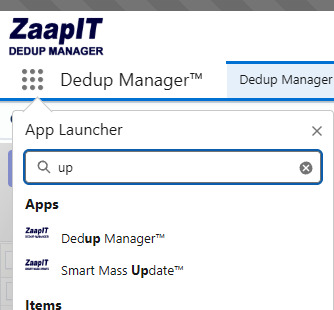
Find ZaapIT apps in Salesforce
Use the Salesforce App Launcher to open the tool you need.
- In Salesforce Lightning, select the App Launcher (the nine-dot icon).
- Select View All if the full app list is not already open.
- Search for ZaapIT, Mass Update, or Dedup Manager.
- Open Smart Mass Update or Dedup Manager from the Apps results.
In Salesforce Classic, use the app menu in the upper-right to choose a ZaapIT app.
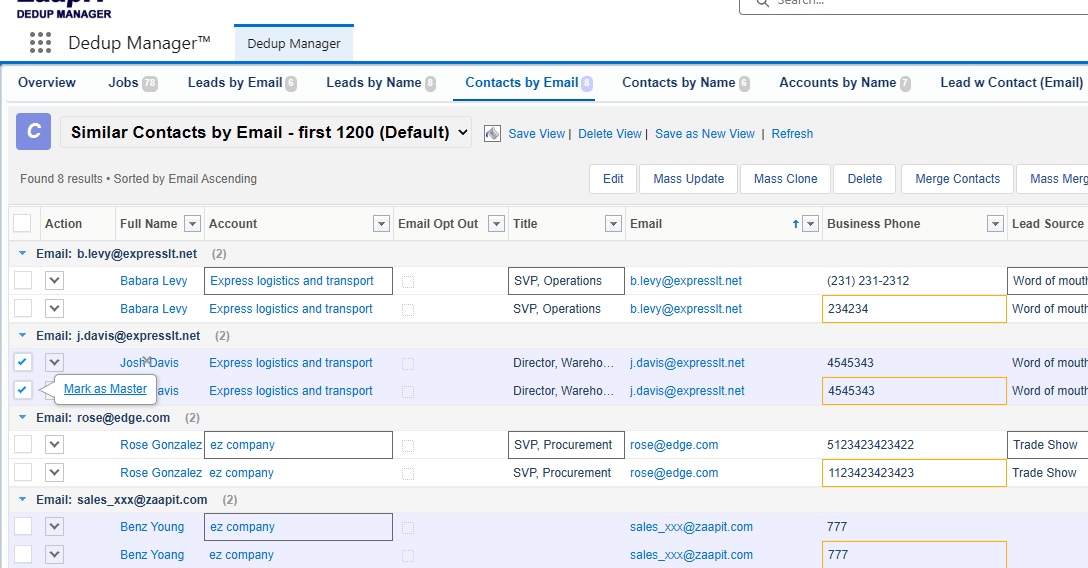
First duplicate cleanup: Contacts by Email
Run a small review first so you can confirm which records match and which values should survive.
- Open DEDUP-Manager from Salesforce.
- Select the Contacts by Email premade tab.
- Review the duplicate groups that load. Check that each group represents the same person.
- Select the groups you intend to merge and mark the record to keep as Master.
- Review the field merge strategies, then choose Mass Merge.
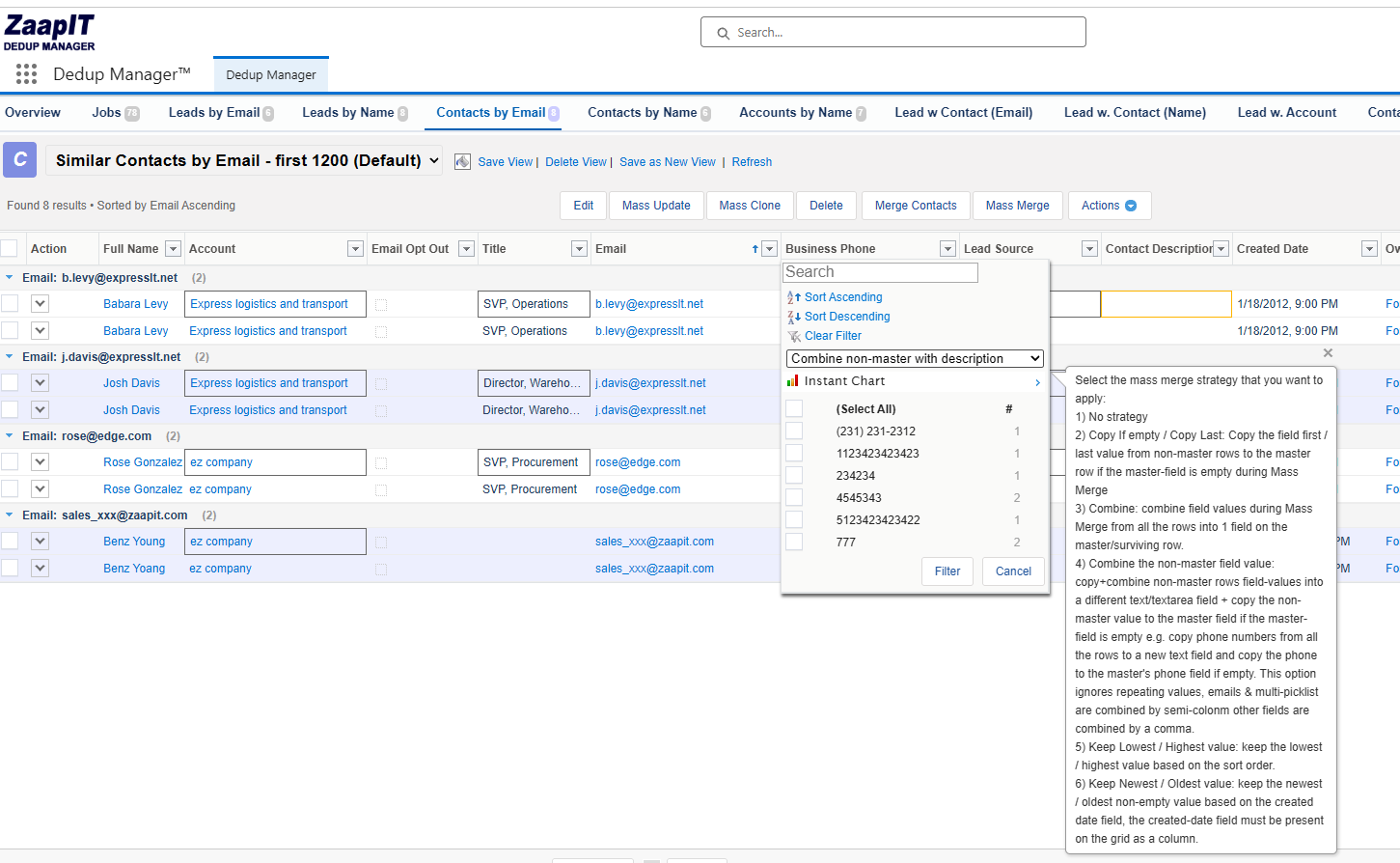
Decide what happens to each field
The column menu lets you choose how data from non-master records is handled. Check important fields before merging.
- No strategy: leave the master value unchanged.
- Copy if empty: fill a blank master field from another record.
- Combine: preserve multiple values in one field where the field supports it.
- Keep lowest, highest, newest or oldest: choose values by the relevant rule.
More detail and support
Continue with the full documentation when you are ready to configure more complex actions or scheduled cleanup.