Split Salesforce Cases with ZaapIT: Give Each Support Issue Its Own Case
When should a support agent split a Salesforce case?
Split a case when one customer conversation contains distinct issues that need their own owner, priority, or resolution. A generator that will not start and a disputed service invoice may arrive in the same phone call, but fixing the equipment does not settle the bill. ZaapIT’s new Split Case feature lets agents prepare a separate case, choose field values and select related records to copy or move, and optionally link the new case as a child of the original. After a successful split, agents can split the original case again for another issue or use Restore split to undo the indicated split. Here is an illustrative support scenario and a practical walkthrough using the new feature.

Why support conversations outgrow a single case
Customers organize their requests around their experience, not your support queues. They add an invoice question during troubleshooting, mention another product while an agent is on the phone, or reply to an old email with a new problem. HappyFox’s support documentation describes splitting unrelated issues so multiple agents can work separately. BoldDesk documents the same pattern: separate requests can be assigned and tracked independently while retaining a relationship to the original conversation.
Inside a combined case, a single status struggles to describe two different outcomes. “Resolved” may mean the machine works while the invoice dispute is still waiting. Reassigning the entire case to billing can obscure who owns the repair. Keeping everything with the original agent creates extra coordination work and makes the next customer update harder to write.
Use Case: Separate a Generator Repair from a Billing Dispute

This fictional example is inspired by the generator-related subject visible in the supplied ZaapIT screenshots; it is not a customer testimonial. A facilities manager calls because a generator will not start after an electrical failure. During the call, they also question a charge on the previous service invoice.
The agent identifies two requested outcomes: restore the generator to service, and explain or correct the disputed charge. Technical support needs fault symptoms and troubleshooting notes. The billing specialist needs the invoice reference and the customer’s explanation of the disputed line item. Both need the same account and contact.
| Case | Owner and focus | Resolution criterion |
|---|---|---|
| Original: Generator will not start after electrical failure | Technical support investigates the startup failure and coordinates the repair. | The startup problem is resolved and the customer confirms the agreed technical outcome. |
| New: Review disputed generator service invoice | A billing specialist reviews the charge and explains any correction. | The billing question is answered and any agreed adjustment is completed. |
The agent creates the billing case with ZaapIT, retains the account and contact, sets a specific subject, and selects the appropriate owner. They review priority independently: the urgency of an equipment outage should not automatically determine the urgency of an invoice question. They copy the comments relevant to billing and leave unrelated troubleshooting activities out of the selection.
Enabling the child-case option preserves a parent–child relationship. The team can then manage the two outcomes separately and use its agreed communication process to keep the customer informed. The link itself does not define when either case should close; the team’s case policy and Salesforce automation determine that behavior.
How to Split a Case with ZaapIT
1. Review the new case beside the original values
Open ZaapIT’s Split Case dialog for the case you are handling. The field section shows New Value and Original Value side by side. Use the field checkboxes to choose what to include, edit the new values, and use the search box to locate a field. The screen also provides Include all, Exclude all, and Copy all originals controls, plus a copy arrow for each displayed row.
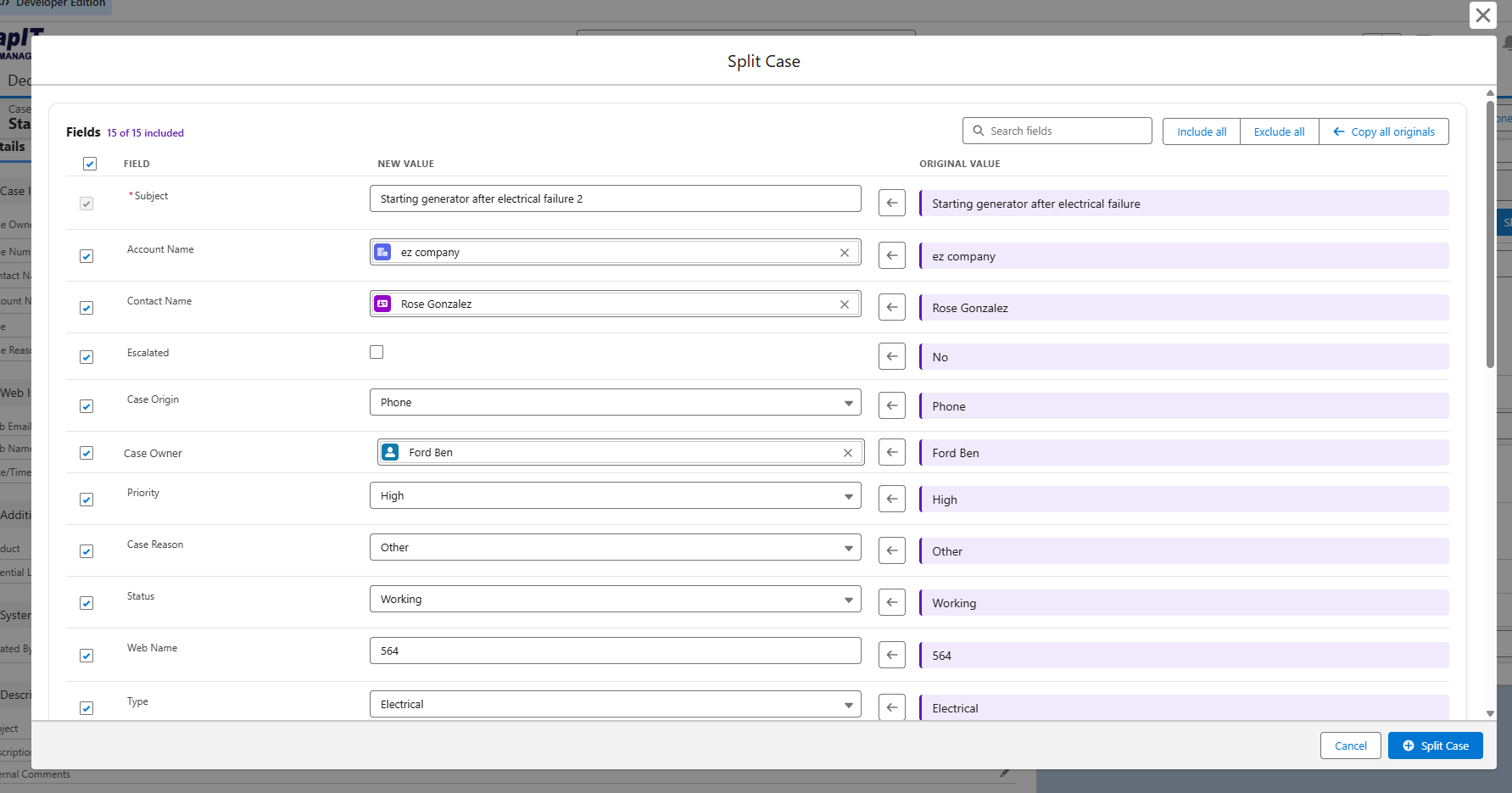
Give the new case a subject that describes its own outcome. “Review disputed generator service invoice” is easier to route than “Starting generator after electrical failure 2.” Review the visible Case Owner, Priority, Status, Case Reason, and Type fields rather than accepting every original value. Keep the account, contact, origin, and product where they remain relevant.
2. Select the context that belongs with the new issue
Scroll to Related records to copy. The screen shows selectable Case Comments and Activities, with selection counts and separate Copy and Move controls for each section. Select the records relevant to the new issue and review the action for each section. In this example, the billing activity “Find out more details about billing” is selected with Move active; no case comments are selected.
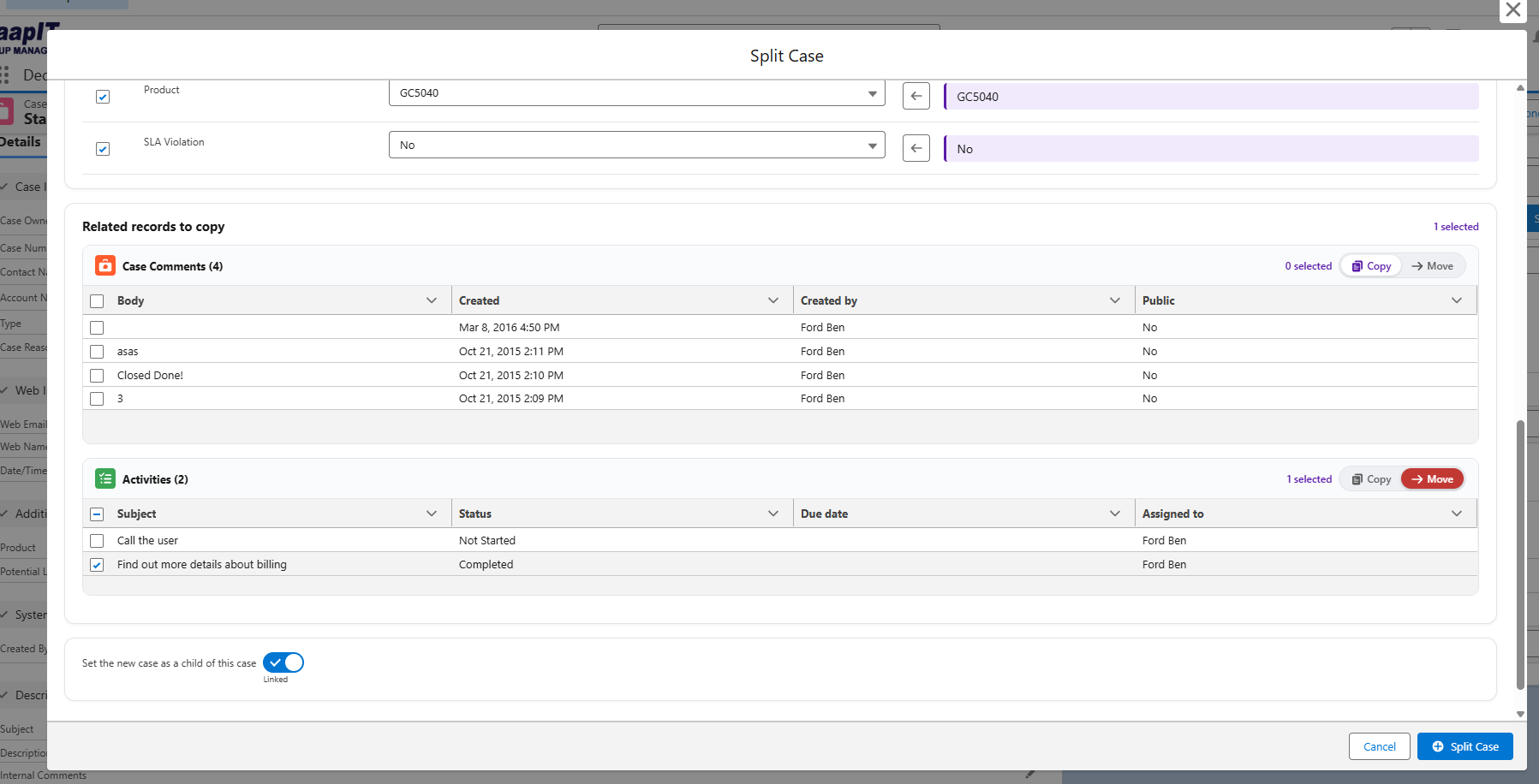
Use Copy when the selected context should remain on the original case and also be available on the new case. Use Move when the selected records belong with the new issue. Review the resulting records and their case relationships after splitting. Check activity owners and statuses before handing work over: the selected billing activity in this screenshot is already marked Completed, so it provides history rather than a new open task. Where a comment discusses both issues, add a clear issue-specific summary through your usual case workflow.
3. Choose the relationship and create the case
Use Set the new case as a child of this case when you want the parent–child connection, then review your selections and click Split Case. Check the resulting case’s subject, owner, status, selected records, and relationship before handing it over. Confirm the original case still has a clear owner for the remaining work.
Tell the customer what the split means in practical terms: “Our technical team is handling the generator startup issue. I’ve opened a linked billing case so our billing specialist can review the service charge separately.” Agree who will coordinate updates, especially when the customer should have one main point of contact.
4. Split the original case again when another issue remains
After a successful split, ZaapIT offers three next steps: Stay here, Split original case again, and Open new case. Choose Split original case again to create another separate case from the original. This supports multiple successive splits when one conversation contains several distinct requests.
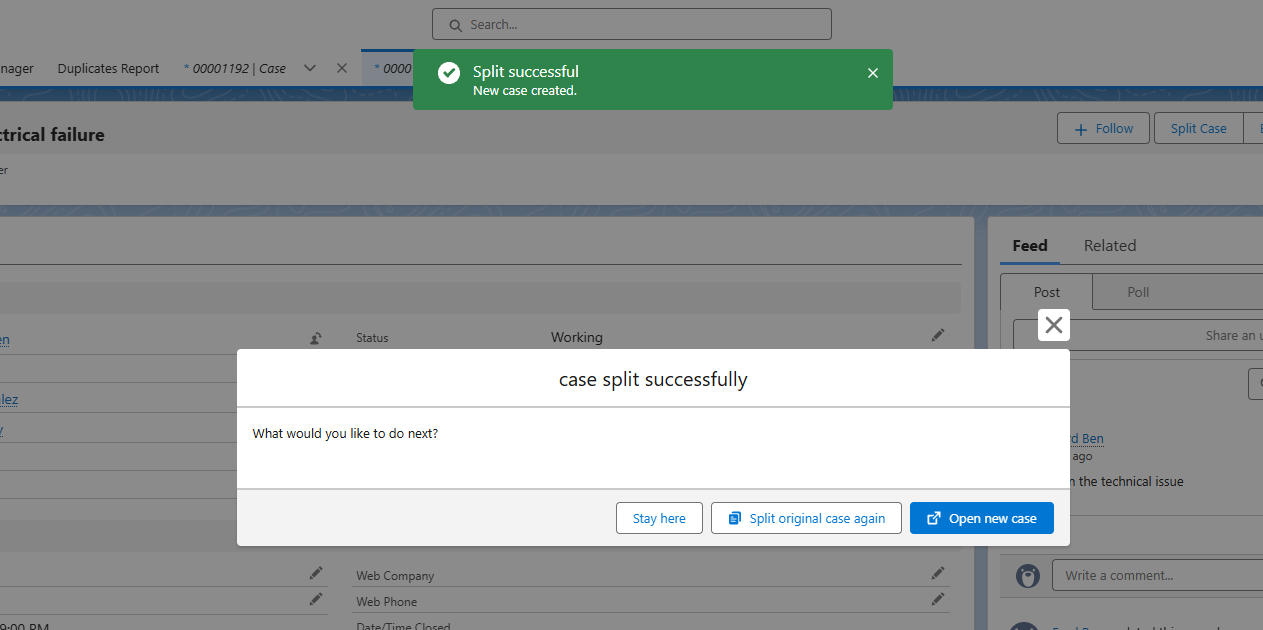
For example, the generator customer may also request a separate preventive-maintenance visit. After splitting out the billing dispute, the agent can split the original case again to create a maintenance-request case, while keeping the generator fault on the original. Review the subject, owner, field values, related-record selections, Copy or Move choices, and child-case option for each split so each new case has a clear purpose.
5. Undo a split with Restore split
ZaapIT also provides an undo option through Restore split. When the Split Case dialog shows a previous split, its banner identifies the split date and time and provides the restore button. As the banner explains, restoring deletes the new record and puts back any moved related records.
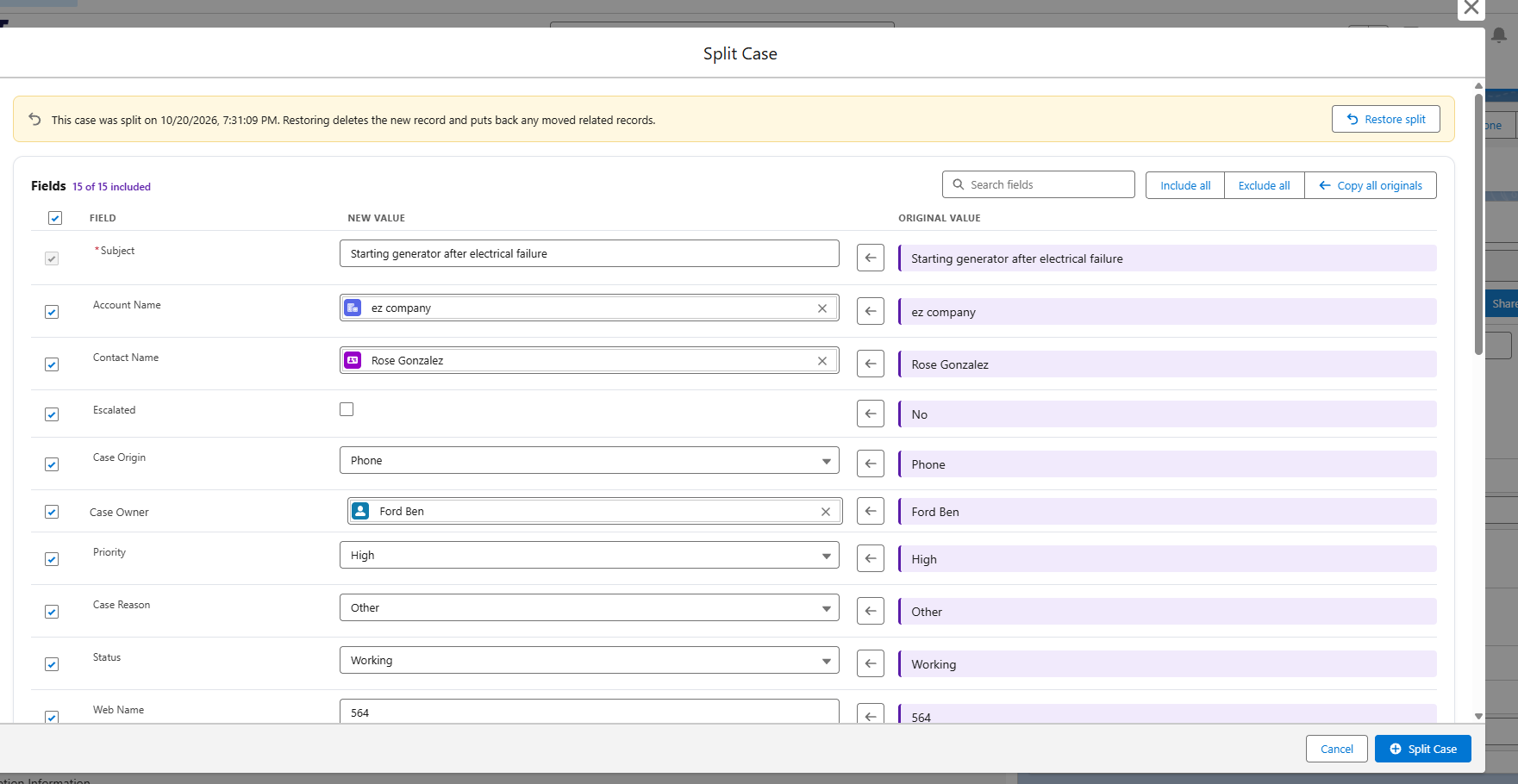
This is useful if an agent separated an issue prematurely or needs to correct a split. Before choosing Restore split, check the indicated split and review the new case for subsequent work, because restoration deletes that new record. After restoring, verify that the moved related records are back on the original case. If a separate case is still needed, review the selections and perform the split again.

Other Common Reasons to Split a Support Case
- A new problem arrives on a resolved conversation. A customer replies to a completed password-reset case about a failed export. Track the export as a separate issue rather than treating the old password problem as unresolved.
- Two products need different specialists. One message reports a mobile sync failure and asks for help configuring desktop reports. Separate cases can give each request a clear owner and acceptance criterion.
- An investigation needs its own work record. Customer support provides a workaround while engineering investigates a defect. A linked case can track the investigation if that matches your organization’s workflow; the customer-facing case still needs an accountable owner.
- One issue is urgent and the other can wait. Restoring access and updating a billing address should not compete for the same priority or closure decision.
These are practical examples of separate work, not a requirement to split every multi-part message. Two symptoms of the same failure may belong together. Likewise, duplicate reports of the same issue call for duplicate-case review, not another split.
Keep Case Reporting and AI Context Meaningful
The Vicasso AI overview highlights keeping one issue per case and identifying when a conversation expands beyond its original scope. The broader lesson is useful: a case with a clear problem, relevant context, and a matching resolution is easier for people—and tools that summarize or retrieve case information—to interpret.
For example, mixing “generator repaired” with an unresolved invoice dispute can make a case summary ambiguous. Splitting the work gives the team a place to document each outcome clearly. This is a data-quality rationale, not a measured claim about AI accuracy or a claim that ZaapIT automatically detects issues or selects records with AI.
For reporting, distinguish new customer contacts from cases created by splitting existing work. Otherwise, case volume can rise without a corresponding rise in incoming requests. Apply your organization’s entitlement and SLA rules to the new case, and confirm how milestones and closure automation behave. Copying the visible SLA Violation field is not evidence that an SLA clock has been recreated, reset, or preserved.
Give Every Support Issue a Clear Next Step
Use ZaapIT’s Split Case feature to prepare the right field values, carry over selected comments and activities, and keep related work connected when needed.
Frequently Asked Questions
When should I split a Salesforce case?
Consider splitting when a conversation contains distinct issues that need separate ownership, priorities, or resolution decisions. Keep related symptoms together when they form one investigation.
What can I choose in ZaapIT’s Split Case dialog?
The screens shown here let you select included fields, edit new field values beside the originals, choose Case Comments and Activities to copy or move, and optionally make the new case a child of the original.
Should I copy or move every comment and activity?
Choose only the records that help resolve the new issue, then review Copy or Move for each section. Check activity ownership, status, and the resulting case relationships so the handoff is clear.
Does splitting automatically close the original case or reset its SLA?
Do not assume either behavior from the split dialog. Review the resulting cases and confirm your organization’s Salesforce closure, entitlement, milestone, and automation rules.
Can I undo a case split in ZaapIT?
Yes. Use Restore split when the Split Case dialog shows the previous split. Restoring deletes the new record and puts back any moved related records. Review the indicated split and any subsequent work on the new case before restoring.
Can I split the same original case more than once?
Yes. After a successful split, choose Split original case again to separate another issue into its own case. Review the fields, owner, related records, Copy or Move choices, and child-case option for each successive split.
Useful ZaapIT Resources
Sources
The support practices above draw on the references linked in the article. ZaapIT feature descriptions are based on the four supplied product screenshots. Other vendors’ AI, email, attachment, or transfer capabilities are not presented as ZaapIT features.