How to Create a Salesforce Passkey on Mac With Apple Passwords
How Do You Save a Salesforce Passkey Correctly on a Mac?
On a current Mac, the right setup uses Apple Passwords with iCloud Keychain and Password AutoFill enabled under the intended Apple Account. Register the passkey from Salesforce, approve it with Touch ID or the available Mac authentication option, and test it before removing any older verification method. This guide covers each step and the mistakes that can leave a passkey on the wrong device or outside iCloud Keychain.

Prepare Apple Passwords and iCloud Keychain
Apple introduced the dedicated Passwords app in macOS Sequoia. It stores passwords, passkeys, verification codes, and security recommendations in one place. With iCloud Keychain enabled, passkeys are available on approved Apple devices signed in to the same Apple Account.
- Update macOS. Use macOS Sequoia or later for the Passwords app and install current security updates.
- Confirm the Apple Account. Open System Settings and verify that the Mac uses the Apple Account approved for work passkeys.
- Turn on iCloud Keychain. In System Settings, select your name > iCloud > Passwords and Keychain, then enable iCloud Keychain or Sync this Mac as shown by your macOS version.
- Turn on Password AutoFill. Go to System Settings > General > AutoFill & Passwords and enable AutoFill Passwords and Passkeys.
- Open Passwords. Authenticate with Touch ID or your Mac user password, then select Passkeys to review existing credentials.
Create the Salesforce Passkey in Safari
- Open Safari on the prepared Mac. Use your normal Salesforce My Domain or login URL.
- Enter your Salesforce credentials. On a new device, complete any existing identity check or use a temporary verification code supplied by your Salesforce administrator.
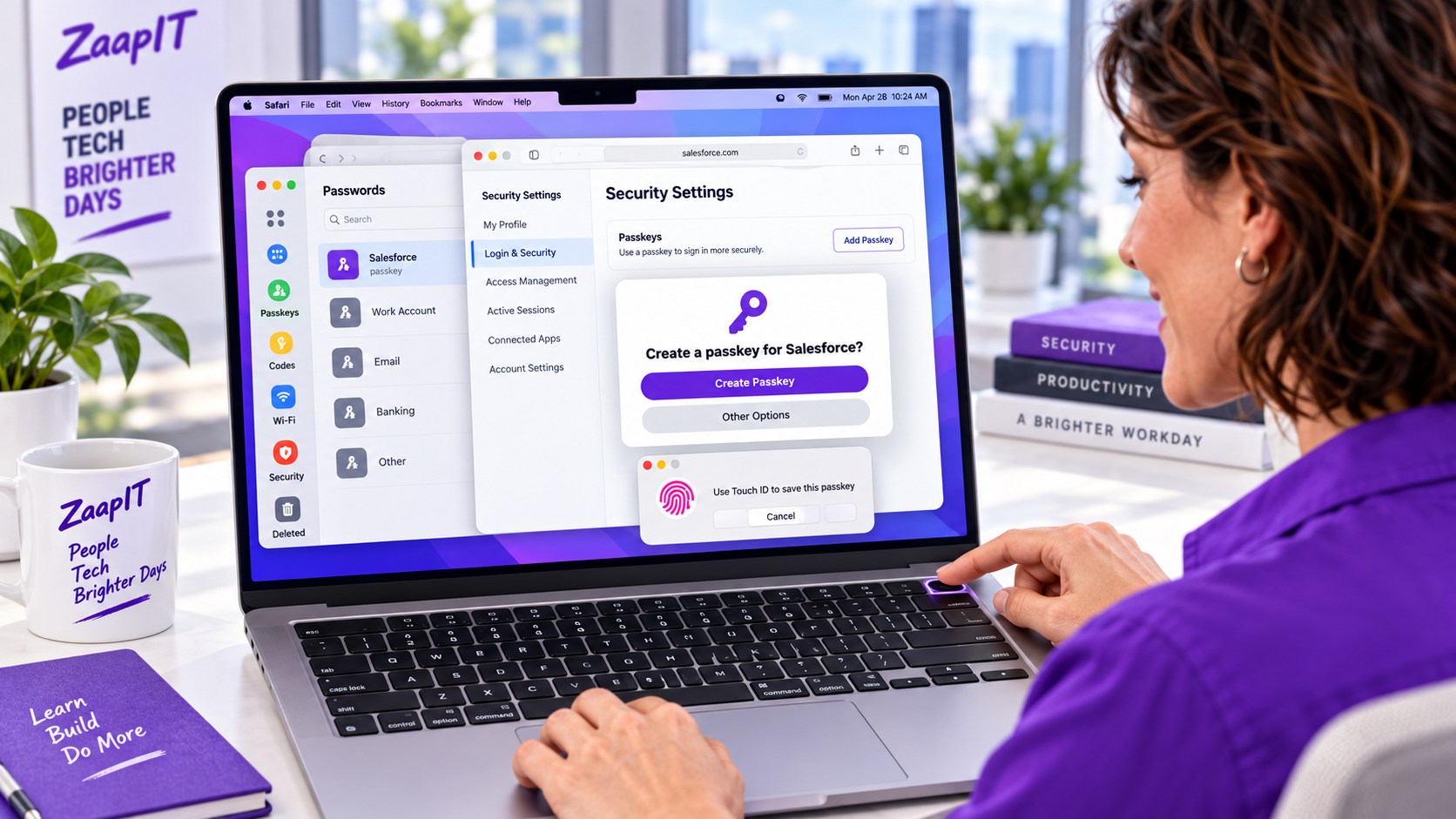
- Accept the registration prompt. When Salesforce asks you to create a passkey, select Create Passkey. If the prompt does not appear, open the Passkeys page in Salesforce personal settings and select Add Passkey.
- Save to Apple Passwords. Follow the macOS prompt. With iCloud Keychain enabled, the passkey is stored in Passwords and synchronized to approved Apple devices.
- Approve with Touch ID. Place your finger on Touch ID when prompted. If Touch ID is unavailable, follow the displayed option for your Mac, a nearby iPhone or iPad, or an approved security key.
- Confirm completion. Salesforce sends an email notification when a new passkey is added to the account.
Apple says iCloud Keychain must be set up before a Mac can create and save a passkey. On macOS Sonoma or earlier, saved passkeys appear in System Settings or Safari settings instead of the newer Passwords app.
Agree to Use the Passkey on the Next Login
Sign out of Salesforce and test the passkey immediately. Return to the Salesforce login page in Safari and enter or select your username. When Salesforce or Safari asks to use the saved passkey, agree and use it. Approve the request with Touch ID or the authentication method offered by the Mac.
If your Salesforce administrator has enabled passwordless login and your username is saved, selecting that username can lead directly to the passkey prompt. Otherwise, the passkey can provide phishing-resistant verification after the username and password step.
Where Can the Apple Passkey Be Used?
| Option | How it works | Best fit |
|---|---|---|
| Apple Passwords with iCloud Keychain | Syncs the Salesforce passkey across approved Apple devices using the same Apple Account | Users who access Salesforce from a Mac, iPhone, or iPad |
| Nearby iPhone or iPad | Uses a QR code and proximity check to authenticate the Mac with a passkey on the mobile device | A Mac without Touch ID or a passkey held on another Apple device |
| Physical security key | Stores and presents the passkey on an approved hardware key | Organizations with a hardware-backed authentication policy |
Common Problems and Safe Fixes
The Salesforce passkey does not appear in Passwords
Open Passwords, authenticate, and select All or Passkeys. Confirm that iCloud Keychain is enabled and that the Mac uses the Apple Account that created the passkey.
The passkey appears on one Mac but not another device
Verify that both devices are approved, signed in to the same Apple Account, and have Passwords enabled in iCloud settings. Software versions must also support the credential and any shared group that contains it.
Touch ID is unavailable
Select Other Options if it appears. Apple supports using a nearby iPhone or iPad by scanning a QR code, or an external security key. Bluetooth must be enabled for nearby-device authentication.
Salesforce never offers passkey registration
Open the Passkeys page in Salesforce personal settings and select Add Passkey. Your administrator may need to review Identity Verification settings. Salesforce passkeys support direct Salesforce login and are not available for Experience Cloud sites.
Salesforce Admin Rollout Checklist for Mac Users
- Confirm passkeys are enabled for the intended Salesforce users.
- Document whether iCloud Keychain, nearby Apple devices, or physical security keys are approved.
- Require supported macOS versions and current security updates.
- Tell users which Apple Account can store company passkeys.
- Prepare a temporary verification-code process for new or replacement devices.
- Ask users to test login on every approved device before removing an older verification method.
- Avoid shared Passwords groups for individual Salesforce accounts unless company policy explicitly permits them.
Keep Salesforce Administration Secure and Predictable
After secure access is configured, use ZaapIT for controlled Salesforce mass updates, duplicate cleanup, backups, bulk undo, and restoration of affected rows.
Frequently Asked Questions
Where is a Salesforce passkey stored on a Mac?
On macOS Sequoia or later, the passkey appears in the Passwords app. When iCloud Keychain is enabled, it can synchronize to approved Apple devices signed in to the same Apple Account.
Do I need Touch ID to use a Salesforce passkey on Mac?
Touch ID is convenient but not the only option. Depending on the prompt and policy, you can use a nearby iPhone or iPad, a supported security key, or another authentication method offered by the Mac.
Does iCloud Keychain sync Salesforce passkeys?
Yes. Apple says iCloud Keychain keeps passkeys updated across approved Apple devices that use the same Apple Account and have Passwords enabled in iCloud settings.
What should I do when Safari asks to use the Salesforce passkey?
Agree to use the saved passkey, verify that it belongs to the correct Salesforce account, and approve the request with Touch ID or the authentication option displayed by the Mac.
How can I recover Salesforce access if my Mac is unavailable?
Try the synced passkey on another approved Apple device or use another registered verification method. If neither works, contact your Salesforce administrator for the approved recovery or temporary verification-code process.