How to Create a Salesforce Passkey With Google Password Manager
How Do You Save a Salesforce Passkey to the Right Google Account?
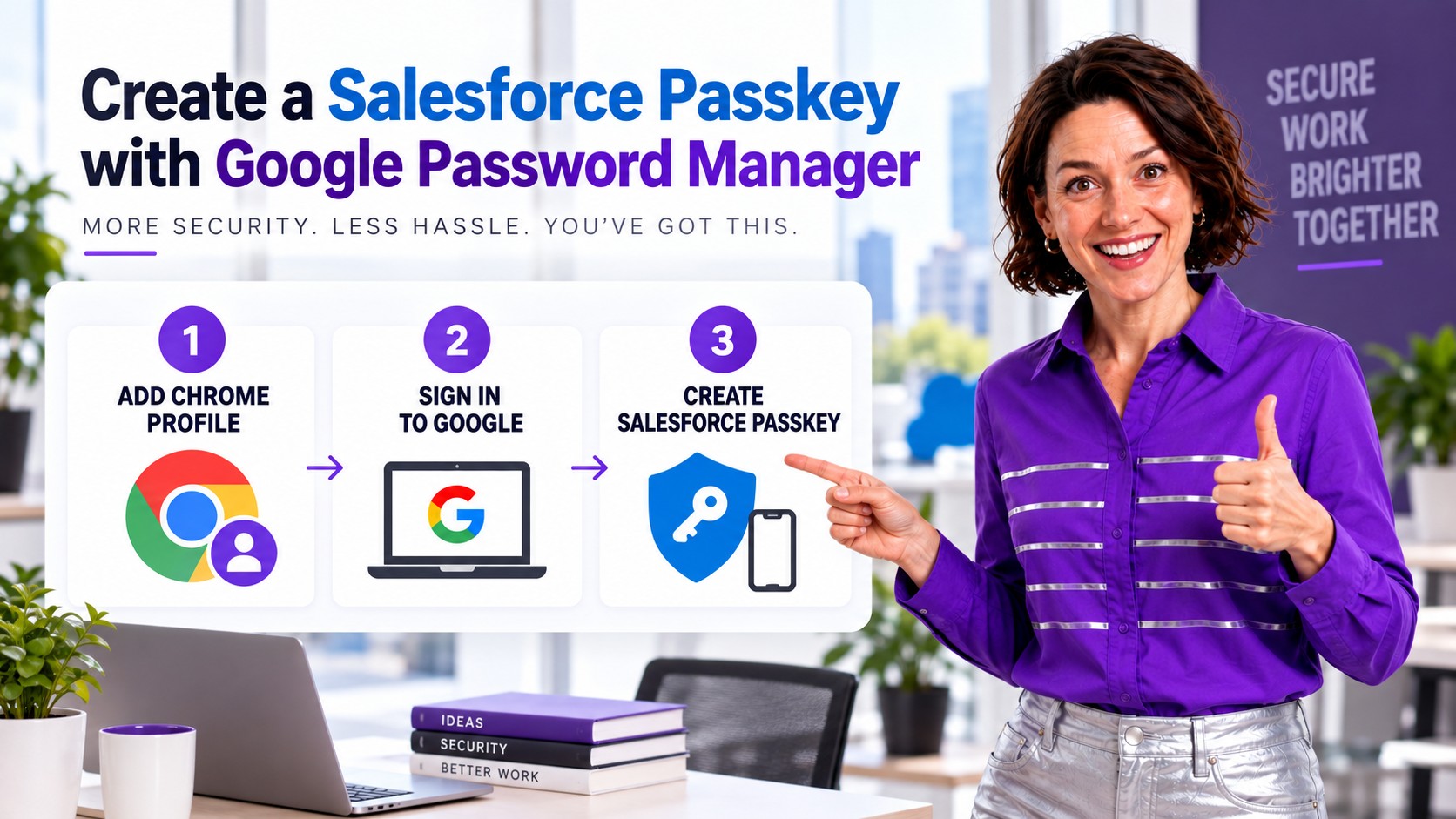
The safest setup starts before the Salesforce prompt appears. Open Chrome’s profile menu at the top right, add a dedicated Chrome profile, and sign in with the Google account that should hold your work passkeys. Then register the Salesforce passkey and allow Google Password Manager to save it. This guide walks through the process and the checks that prevent the passkey from being stored locally or under the wrong Google account.
Before You Create the Passkey
A passkey is a cryptographic credential unlocked by your device PIN, fingerprint, face recognition, or another approved device-unlock method. Google Password Manager can sync a saved passkey to devices where you use the same Google account. Salesforce also supports device-bound passkeys, but Salesforce recommends synced passkeys when you sign in from multiple devices.
- Use a computer and Chrome profile that your organization allows for Salesforce access.
- Know which Google account should store the work passkey. Keep work and personal accounts separate.
- Make sure the device has a screen lock, PIN, fingerprint, or facial recognition configured.
- Confirm that your Salesforce admin permits passkeys and that Google Password Manager is allowed by organizational Chrome policies.
- Have an existing verification method or a temporary verification code available for the first login on a new device.
Step 1: Add the Correct Chrome Profile and Sign In to Google
- Open Chrome. Select the profile icon at the top right of the browser.
- Select Add Chrome profile. Google documents this as the way to keep bookmarks, history, passwords, passkeys, and other settings separated by account.
- Choose Sign in. Sign in with the Google account that your organization expects you to use for work credentials.
- Check the active profile. Look at the profile icon again and confirm the displayed account is the intended work Google account before opening Salesforce.
- Check Google Password Manager. In Chrome, open More > Passwords and autofill > Google Password Manager > Settings. Confirm that Offer to save passwords and passkeys is enabled if your administrator allows it.
Step 2: Create the Passkey in Salesforce
- Stay in the new signed-in Chrome profile. Open your normal Salesforce login page and enter your Salesforce username and password.
- Complete the initial identity check. On a new device, Salesforce can require a secondary verification method or a temporary verification code from your administrator.
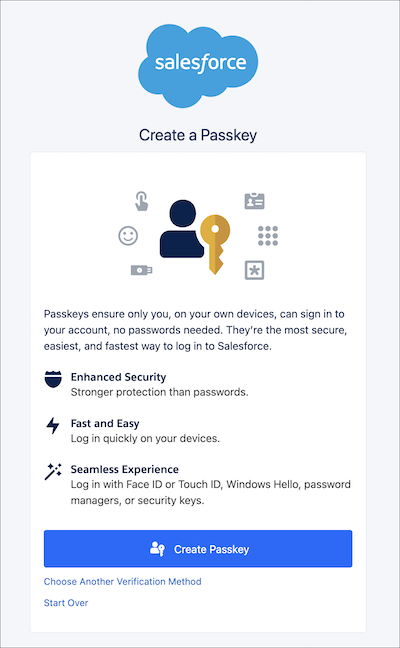
- Accept the Salesforce invitation. When Salesforce asks you to create a passkey, select Create Passkey. If you are already logged in and do not see the prompt, open the Passkeys page in your Salesforce personal settings and select Add Passkey.
- Choose Google Password Manager. When Chrome asks where to save the credential, select the option associated with the signed-in Google profile. Avoid a local-only or device-bound option when your goal is a synced passkey.
- Approve creation. Use your device PIN, fingerprint, or face recognition when prompted. This unlocks the passkey; your biometric data is not sent to Salesforce.
Step 3: Agree to Use the Passkey on Login
Sign out of Salesforce and test the new credential. Return to the Salesforce login page in the same Chrome profile. Enter or select your Salesforce username as required by your org. When Chrome or Salesforce asks whether to use the saved passkey, agree and use it. Select the passkey stored in the intended Google account, then complete the device-unlock prompt.
If your administrator has enabled passwordless login and your username is saved, Salesforce can take you directly from the saved username to the passkey prompt. Otherwise, the passkey can serve as the phishing-resistant verification method after the username and password step.
Synced Passkey or Device-Bound Passkey?
| Choice | Where it works | Best fit |
|---|---|---|
| Google Password Manager synced passkey | Supported devices where the same Google account and password manager are available | Users who access Salesforce from more than one approved device |
| Device-bound passkey | Only on the device where it was created | Users with one managed device or an organization that requires local credentials |
| Physical security key | Devices that support the key | Admins, shared workflows, or organizations with a hardware-key policy |
Common Problems and Safe Fixes
Google Password Manager does not appear
Confirm Chrome is signed in to the correct Google account and that Offer to save passwords and passkeys is enabled. A managed browser can disable this option through policy, so ask your IT administrator before changing the storage plan.
The passkey works only on the first computer
You may have created a device-bound passkey. Add a synced passkey from the Salesforce Passkeys page or create separate device-bound passkeys according to your organization’s policy. Salesforce can require a temporary code when registering a new device.
The wrong Google account offers the passkey
Close Salesforce, switch to the correct Chrome profile, verify the account shown by the profile icon, and try again. Remove an incorrect Salesforce passkey only after confirming that another verification method works.
Salesforce never offers passkey registration
Check the Passkeys page in personal settings. Your Salesforce admin may also need to verify Identity Verification settings. Passkeys apply to direct Salesforce login and are not available for Experience Cloud sites.
Admin Rollout Checklist
- Confirm passkeys are allowed for the intended Salesforce users.
- Tell users which managed Google account and Chrome profile should store work passkeys.
- Document whether synced passkeys, device-bound passkeys, or physical security keys are approved.
- Prepare a temporary verification-code process for new or replaced devices.
- Ask users to test the passkey immediately and on a second approved device when cross-device access is expected.
- Keep at least one approved recovery method available before removing an old credential.
Keep Salesforce Access and Data Workflows Under Control
Use ZaapIT to improve the Salesforce admin experience after secure access is in place, from controlled mass updates to duplicate cleanup and recoverable data operations.
Frequently Asked Questions
Does a Salesforce passkey replace my Salesforce password?
It depends on your org configuration. A passkey can serve as the phishing-resistant verification method after a password, or it can support passwordless login when an administrator enables that Salesforce feature and the other requirements are met.
Why should I add a Chrome profile before creating the passkey?
A dedicated Chrome profile makes it clear which Google account stores and offers the passkey. It also separates work passwords, passkeys, bookmarks, and browsing settings from personal accounts.
Can Google Password Manager sync my Salesforce passkey?
Yes, when Chrome and organizational policies permit it. Save the passkey to the signed-in Google account and test it on another supported device where that same account is active.
What should I select when Salesforce asks to use a passkey?
Agree to use the passkey, choose the credential offered by the intended Google Password Manager profile, and complete the device-unlock request with your PIN, fingerprint, or face recognition.
What if I lose the device that created the passkey?
Try the synced passkey from another approved device or use another registered verification method. If neither is available, contact your Salesforce administrator for the approved account-recovery or temporary verification-code process.