How to Create a Salesforce Passkey With Microsoft Password Manager in Edge
How Do You Save a Salesforce Passkey to the Correct Edge Profile?
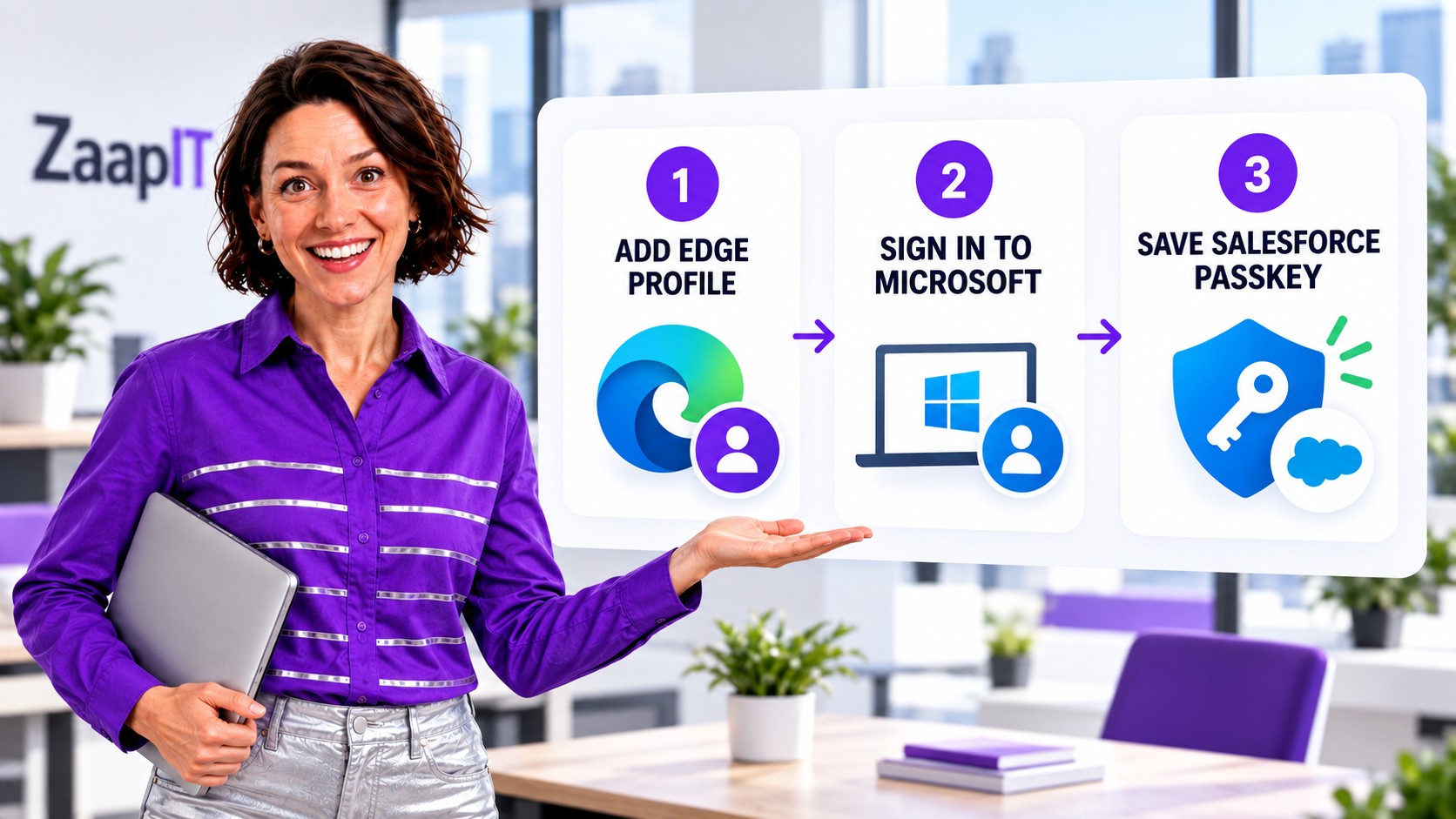
Open Microsoft Edge, select the profile icon at the top right, set up a separate profile, and sign in with the Microsoft account that should store your passkeys. Then create the Salesforce passkey and choose Microsoft Password Manager instead of a local-only Windows Hello credential. This guide explains the complete setup, login test, and recovery checks.
Check Compatibility Before You Start
Microsoft describes Microsoft Password Manager as a synced credential manager available in newer Microsoft Edge versions. Its current support guidance says the feature is available in Edge version 142 and later with an eligible personal Microsoft account profile. A work or school account, browser policy, or managed Windows configuration can limit passkey storage options.
- Update Microsoft Edge before starting.
- Decide which approved Microsoft account should hold the Salesforce passkey.
- Use a device protected by Windows Hello, a PIN, fingerprint, or facial recognition.
- Confirm your organization permits Microsoft Password Manager and synced passkeys.
- Have another Salesforce verification method or an admin-issued temporary code for the first login on a new device.
Step 1: Add the Right Microsoft Edge Profile
- Open Microsoft Edge. Select the profile icon at the top right.
- Add a profile. Depending on your Edge version, choose Add new account or Set up a new profile.
- Sign in. Select the Microsoft account approved for this Salesforce passkey, then choose Sign in to sync data when appropriate.
- Verify the active profile. Reopen the profile menu and confirm the correct name and account before visiting Salesforce.
- Open Microsoft Password Manager. Go to Settings and more > Settings > Passwords and autofill > Microsoft Password Manager.
Separating work and personal Edge profiles reduces confusion about which account stores and offers the passkey. It also keeps browsing history, favorites, extensions, passwords, and other synced settings in the intended profile.
Step 2: Register the Salesforce Passkey
- Stay in the verified Edge profile. Open your normal Salesforce login URL and enter your Salesforce username and password.
- Complete the initial identity check. Salesforce can require an existing verification method or a temporary verification code when you register from a new device.
- Select Create Passkey. Accept the Salesforce registration prompt. If it does not appear, open the Passkeys page in Salesforce personal settings and select Add Passkey.
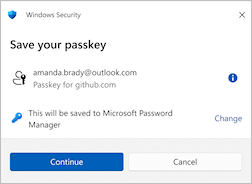
- Choose the save location. When Windows or Edge shows the passkey dialog, select Microsoft Password Manager. If another location is suggested, choose Change or Save another way.
- Confirm the account and site. Check that the prompt refers to your Salesforce login and the intended Microsoft Password Manager profile.
- Approve the passkey. Select Continue and complete Windows Hello with your face, fingerprint, or PIN.
Step 3: Agree to Use the Passkey on Your Next Salesforce Login
Sign out and test the result immediately. Return to Salesforce in the same Edge profile. Enter or select your Salesforce username as required. When Salesforce or Edge asks you to use the saved passkey, agree and use it. Select the credential from Microsoft Password Manager, then approve the Windows Security request with Windows Hello.
If your Salesforce administrator has enabled passwordless login and your username is saved, selecting that username can open the passkey prompt directly. In other configurations, the passkey completes phishing-resistant verification after the username and password step.
Microsoft Password Manager or Windows Hello?
| Save location | Behavior | Use when |
|---|---|---|
| Microsoft Password Manager | Syncs the passkey through the eligible Microsoft account profile | You need the Salesforce passkey on multiple supported devices and policy permits syncing |
| Windows device / Windows Hello | Stores the passkey locally on that Windows device | Your organization requires a device-bound credential or you use one managed computer |
| Phone, tablet, or security key | Stores the credential on another device or physical key | Your policy uses mobile or hardware-backed passkeys |
Windows Hello is also used to unlock a passkey stored in Microsoft Password Manager. The key distinction is the save location: the Password Manager credential is designed to sync, while a Windows device credential stays on that device.
Common Problems and Fixes
Microsoft Password Manager is missing
Check the Edge version and the active profile. Microsoft currently documents Password Manager availability in Edge 142 and later for eligible personal profiles. An administrator can also disable saving passkeys through Edge policy.
The passkey works only on one computer
The passkey may have been saved to the Windows device instead of Microsoft Password Manager. Register another passkey from Salesforce personal settings and choose the synced password-manager location, if allowed.
The wrong Edge profile offers the passkey
Close the Salesforce tab, switch to the intended Edge profile, verify the account shown by the profile icon, and reopen Salesforce. Keep personal and work credentials in separate profiles.
Salesforce does not display the registration prompt
Open the Passkeys page in your Salesforce personal settings and select Add Passkey. Your administrator may need to review Identity Verification settings. Salesforce passkeys apply to direct login and are not available for Experience Cloud sites.
Salesforce Admin Rollout Checklist
- Confirm passkeys are enabled for the intended Salesforce users.
- Document whether Microsoft Password Manager, device-bound Windows Hello, or physical security keys are approved.
- Check Edge versions and browser policies before directing users to Microsoft Password Manager.
- Tell users which Edge profile and Microsoft account should contain Salesforce credentials.
- Prepare a temporary verification-code process for device replacement and first-time registration.
- Ask each user to test login before removing an old verification method.
Keep Salesforce Administration Predictable
After secure access is in place, use ZaapIT for controlled Salesforce mass updates, duplicate cleanup, backups, bulk undo, and restoration of affected rows.
Frequently Asked Questions
Can Microsoft Password Manager store a Salesforce passkey?
Yes, when your Edge version, Microsoft account profile, Windows setup, and organizational policies support the feature. Choose Microsoft Password Manager when the passkey save prompt appears.
Why should I create a separate Microsoft Edge profile?
A separate Edge profile makes it easier to identify which Microsoft account stores and offers the Salesforce passkey while keeping work and personal browser data apart.
What is the difference between Microsoft Password Manager and Windows Hello?
Microsoft Password Manager can sync a passkey through an eligible account. A passkey saved to the Windows device is device-bound. Windows Hello can unlock either credential with a PIN, fingerprint, or face.
What should I do when Edge asks to use my Salesforce passkey?
Agree to use the passkey, select the credential from the intended Microsoft Password Manager profile, and approve the Windows Security request with Windows Hello.
How do I recover Salesforce access if the passkey is unavailable?
Try another synced device or registered verification method. If neither works, contact your Salesforce administrator for the approved recovery or temporary verification-code process.