Clone and Split Salesforce Opportunities: Copy or Move Related Records with ZaapIT
How do you clone or split a Salesforce opportunity without losing the right related records?
Use Copy when a new opportunity should reuse selected products while preserving the original deal. Use Move when part of an existing deal belongs on a separate opportunity with its own close date, owner, or sales outcome. ZaapIT’s Split Opportunity dialog lets you review new field values beside the originals, select related product records, and choose Copy or Move. This guide connects real questions from Salesforce users with a practical walkthrough of those controls.

Why sales teams need more control over opportunity cloning
A familiar problem starts with one opportunity and several products. Some products are ready to proceed; others need a separate approval or a later buying decision. Another problem starts with a repeat order: the rep wants the useful details from an earlier deal, but not its outdated close date, probability, or next step.
Salesforce already provides Clone with Related for supported opportunity relationships, including products, contact roles, and product schedules. Its opportunity cloning guidance explains that workflow. The decision addressed here is more specific: which field values and product rows belong on the new deal, and should those rows remain on the original?
Real user problems: different timelines, stale fields, and difficult product transfers
1. One order contains products with different start dates
In a Salesforce community discussion about staggered license starts, an administrator described one order containing licenses that started immediately and another group starting halfway through the term. Their internal process called for separate opportunities, while replies suggested product-level reporting or schedules as alternatives.
The useful lesson is to decide the sales structure first. Different delivery or billing dates alone may fit one opportunity with product schedules. Separate opportunities make sense when there are distinct buying decisions, owners, or close dates that your sales process genuinely needs to manage independently. A split should represent the deal accurately; it does not itself determine accounting or commission policy.
2. A cloned deal carries values that should have been reset
Another user asked how to clear selected fields when cloning an opportunity. The discussion illustrates a practical repeat-order problem: copying a record is only the beginning. Someone still needs to review which values are appropriate for the new sale.
For a renewal or repeat purchase, start with reusable account and product context, then set a meaningful new name, close date, owner, probability, forecast category, and next step. Review current pricing and product availability. If an established contract-renewal process already creates opportunities, check it before manually creating another one.
3. Moving products becomes a fragile clone-and-delete workaround
A user building a custom process to split opportunity products into new opportunities reported a duplicate-value error. Their process copied a unique product-line field before removing the original line, and behaved differently between environments.
That complaint highlights why a clear Copy or Move choice matters. It also makes unique fields, validation rules, and automation worth checking before a production split. The ZaapIT screenshots show the user-facing selection workflow; they do not establish how every custom constraint or integration will behave.
Choose Copy for a new sale or Move for a separated portion of the deal
| Your situation | Choice | What to verify afterward |
|---|---|---|
| A customer places a repeat order for selected products. | Copy the relevant product rows into the new opportunity. | The original retains its products; the new sale has current dates, pricing, owner, and stage. |
| A subset of products now belongs to a separate buying decision. | Move those rows to a new opportunity. | The selected products belong to the new deal, the remaining products stay on the original, and amounts reconcile. |
| Several reps share credit for the same sale. | Review Salesforce’s sales-credit split configuration. | Credit allocation reflects the team’s contributions without creating extra deals unnecessarily. |
| One contracted sale has staggered delivery or billing. | Review product schedules and your existing process first. | The chosen structure represents the sale and its timing without inflating opportunity counts. |
Use Case: Separate a Generator Installation into Two Buying Phases
Consider an illustrative equipment sale in which the customer moves three product lines into a later purchasing phase. The original opportunity should keep the remaining scope, while the later phase gets its own close date and next step. This example uses the line values visible in the demonstration screenshots; it is not a customer testimonial.
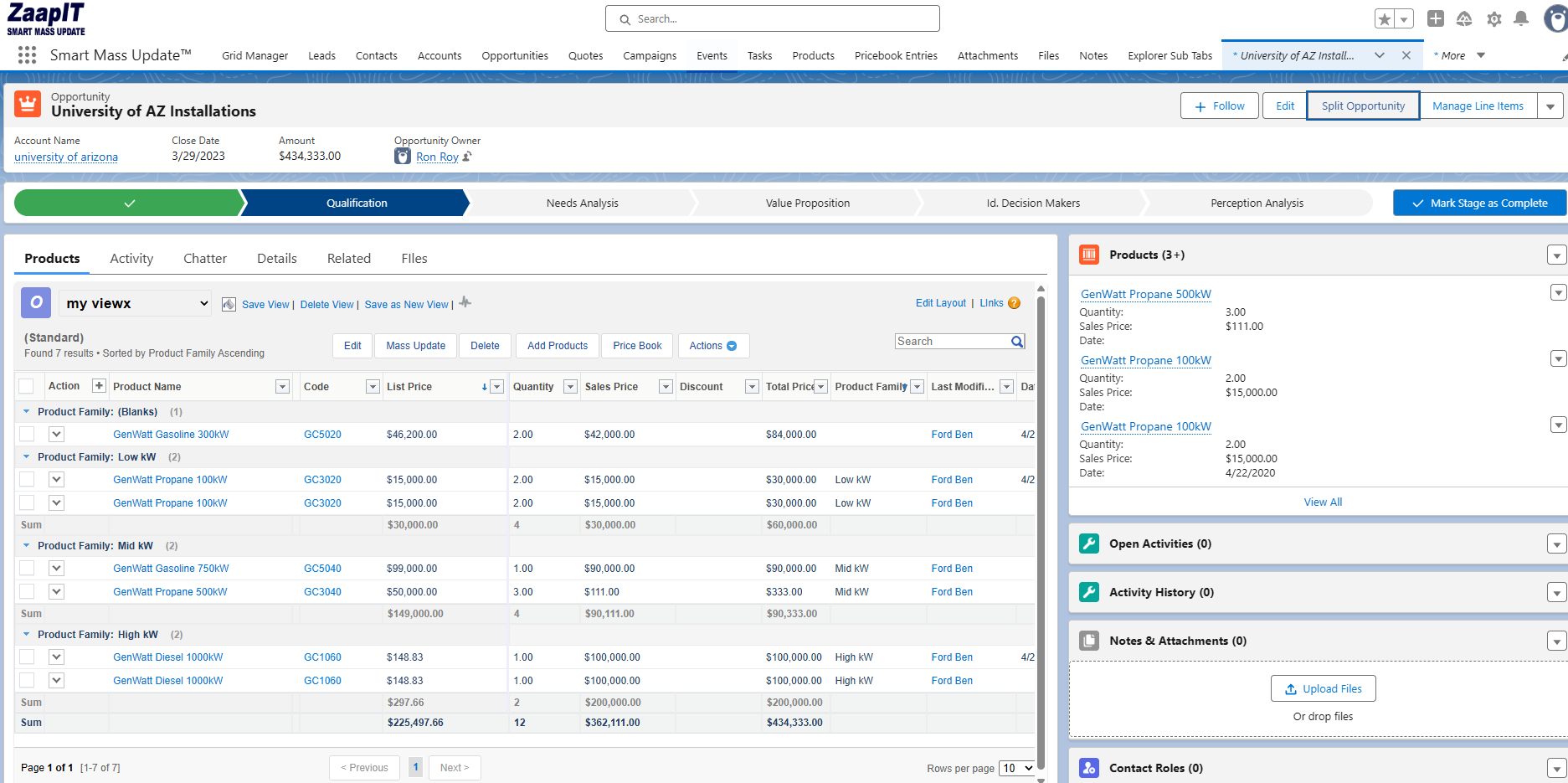
The original screenshot contains seven product rows totaling $434,333. In the selection screenshot, three rows are checked: two 100 kW propane units totaling $30,000, two 300 kW gasoline units totaling $84,000, and one 750 kW gasoline unit totaling $90,000.
| Scope | Product rows | Line-value total |
|---|---|---|
| Original scope before separation | 7 | $434,333 |
| Selected for the later phase | 3 | $204,000 |
| Remaining scope | 4 | $230,333 |
These are reconciliation targets calculated from the displayed line totals, assuming quantities and prices remain unchanged. They are not verified post-split amounts. After a Move operation, check both opportunities and their products rather than assuming that a copied Amount field or the success message proves the totals are correct.

How to Clone or Split an Opportunity with ZaapIT
1. Open Split Opportunity and review the new field values
Open the source opportunity and select Split Opportunity. The dialog presents New Value and Original Value side by side. Field checkboxes control inclusion; Include all, Exclude all, Copy all originals, and individual copy arrows help prepare the new record. Required fields still need valid values.
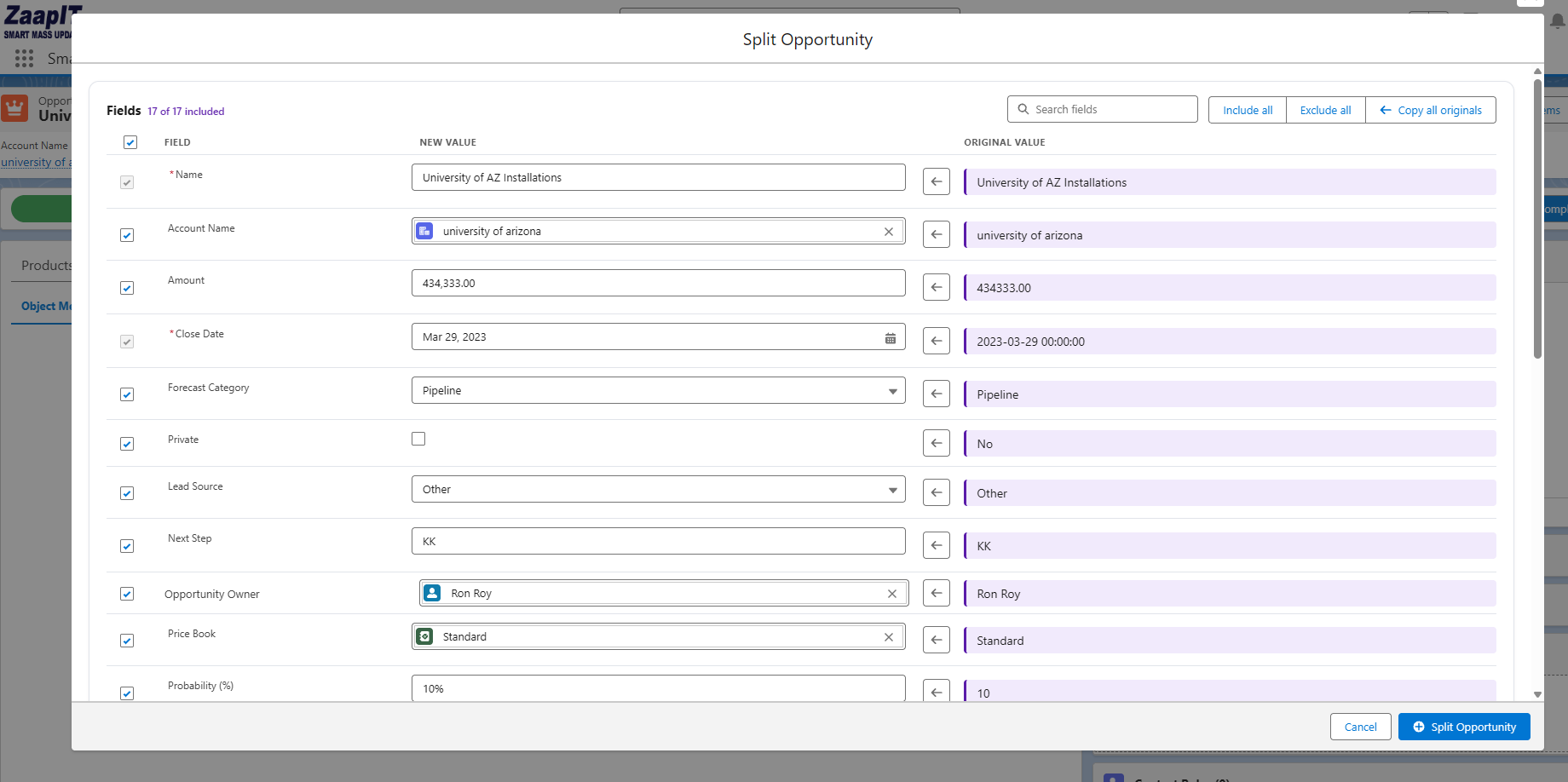
For the buying-phase example, use a descriptive name such as “Generator installation — phase two,” choose its expected close date, and review its owner, forecast category, probability, and next step. Check the stage through the available fields or on the resulting record. The dates in the demonstration are not suggested dates for a new deal.
Copy all originals applies to field values. Related product selection is a separate step. Review the Price Book and Amount fields as well. If the original owner has left the team, follow your reassignment process; ZaapIT’s guide to records owned by inactive Salesforce users covers the broader cleanup workflow.
2. Select the related product rows and choose Copy or Move
Scroll to Related records to copy. In this example, the Products (7) section lists each row with quantity, sales price, and total price. Select the rows that belong on the new opportunity, then review the Copy or Move setting. The screenshot shows 3 selected with Move active.
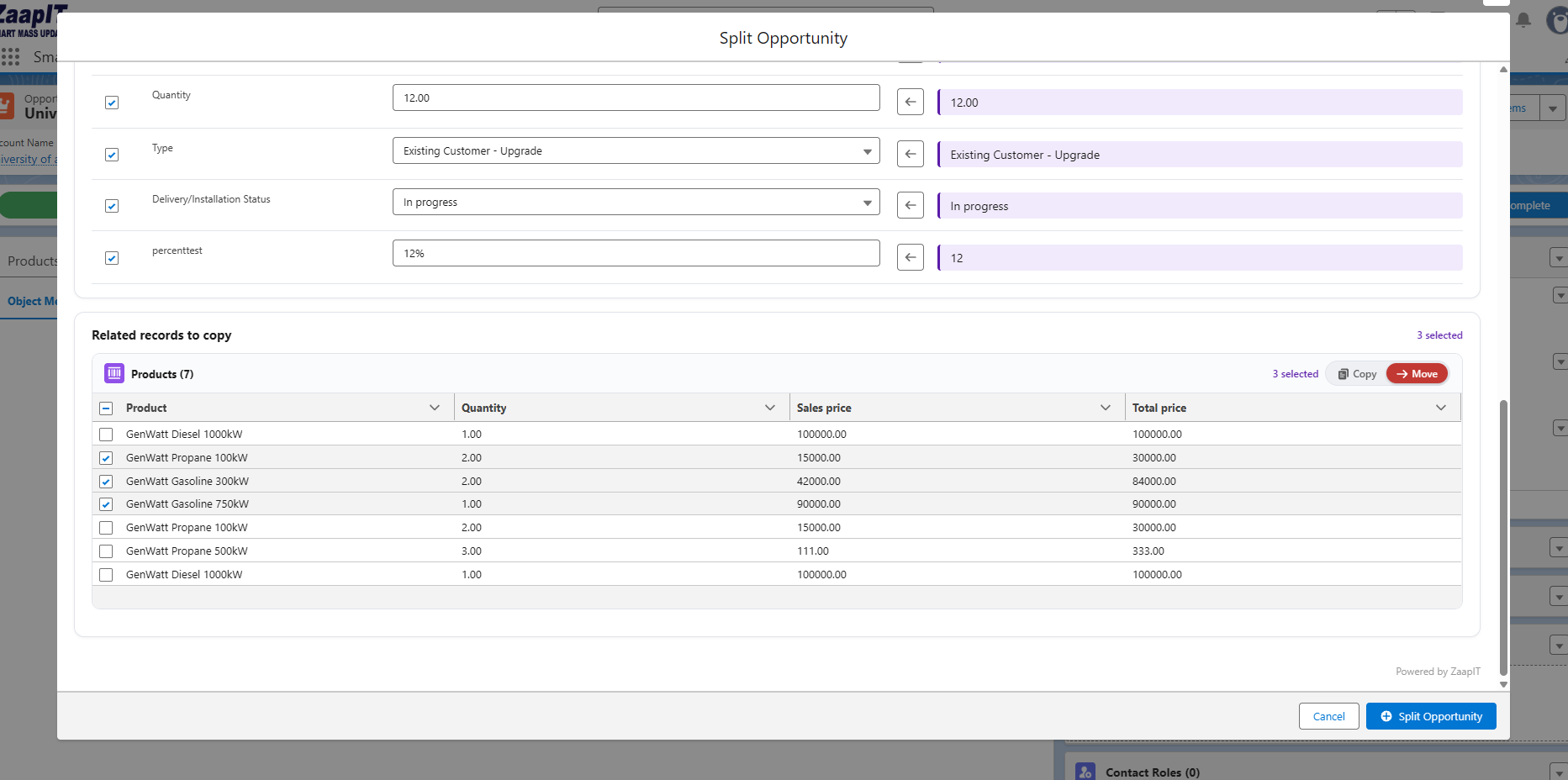
Use Move for the later buying phase. For a new repeat order, use Copy and choose the products to reuse, leaving the original deal intact. Select all relevant rows for a full product copy, or only a subset for a smaller follow-on sale.
Inspect rows individually: the demonstration contains repeated product names, so the name alone does not identify which line you intend to transfer. The checkboxes select whole product rows. If you need to divide the quantity within one row, confirm the supported quantity workflow before proceeding.

The related records demonstrated here are opportunity products. For activities, emails, files, contact roles, quotes, or custom child records, confirm which related-record sections your configuration exposes and test their behavior. A product transfer does not establish that every other relationship moves automatically.
3. Create the opportunity and inspect the result
Review the fields, selected rows, and Copy or Move choice, then click Split Opportunity. The confirmation shows that a new opportunity was created and offers Stay here, Split original opportunity again, and Open new opportunity.
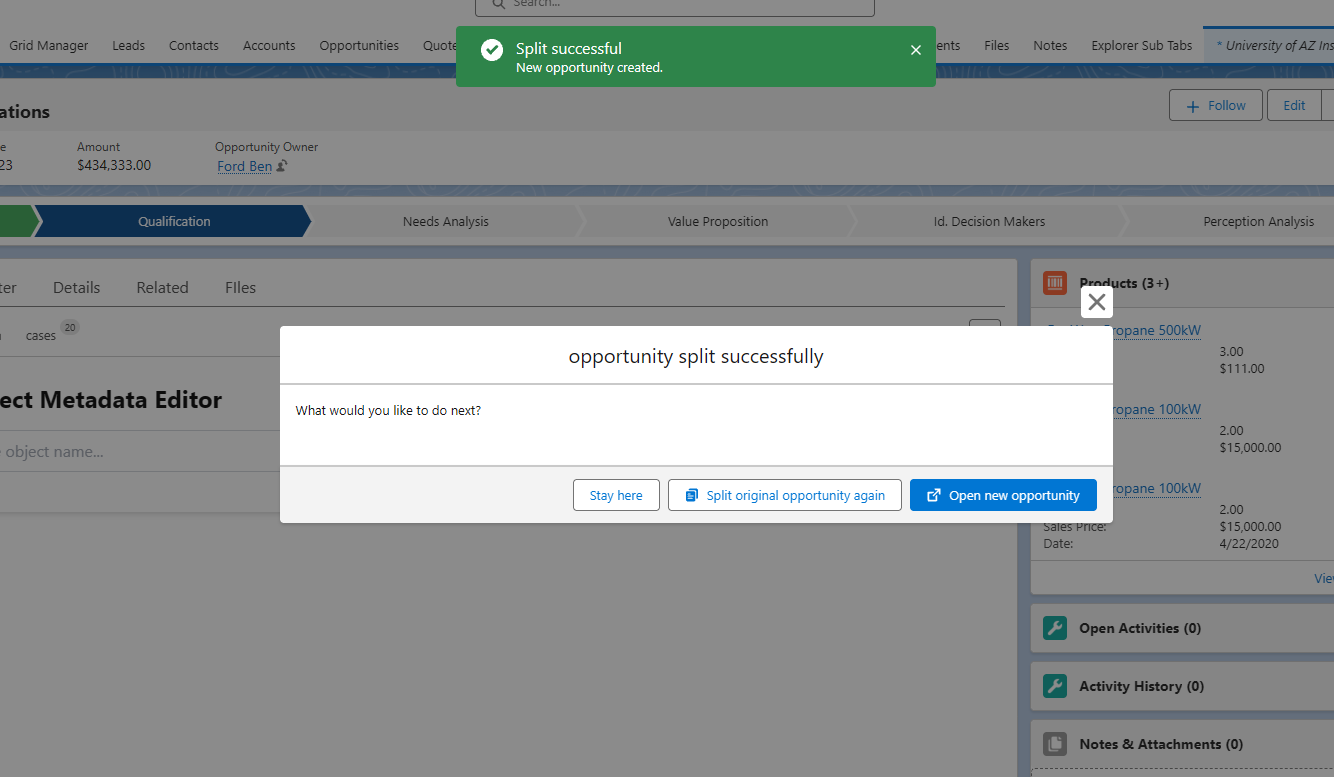
Open the new opportunity and confirm its name, owner, close date, stage, forecast category, product rows, quantities, and prices. Then return to the original. For Move, verify that the selected rows are no longer part of its remaining scope. For Copy, verify that the original still has them. If another buying phase remains, choose Split original opportunity again and review a fresh selection.
Keep the Pipeline Accurate After Cloning or Splitting
- Reconcile the amounts. For a pure separation with unchanged prices, the two sets of product totals should reconcile to the original scope. A repeat order is a separate sale and needs the appropriate reporting period.
- Review dependent records. Check quote synchronization, product schedules, custom IDs, approvals, and integrations where your organization uses them.
- Check for an existing follow-on deal. Search before creating a renewal or repeating a split, especially if automation already creates opportunities.
- Keep context discoverable. Record a clear reference to the original using your organization’s supported relationship field or documentation convention. The supplied opportunity dialog does not show automatic parent–child linking.
If your review exposes duplicate deals instead of distinct buying phases, use the separate ZaapIT duplicate matching and mass merge playbook. For the parallel support workflow, see how to split Salesforce cases with ZaapIT.
Give Each Deal the Right Products and Next Step
Use ZaapIT to review new opportunity values, select the related products that belong with the new sale, and choose whether to copy or move them.
Frequently Asked Questions
Can I clone a Salesforce opportunity with selected products?
In the ZaapIT workflow shown here, review the new opportunity’s fields, select the relevant product rows, and choose Copy. The selected products are copied for the new deal while the original retains them. Verify both records after creation.
When should I use Move instead of Copy?
Use Move when selected products belong exclusively to a separate portion of an existing deal. Use Copy when a new sale should reuse products while retaining the original opportunity’s scope.
Is this the same as Salesforce Opportunity Splits?
Salesforce Opportunity Splits allocate sales credit among team members. The ZaapIT workflow described here creates a separate opportunity and lets you select related product records to copy or move.
Can I split the original opportunity more than once?
Yes. The success dialog offers Split original opportunity again. Review the remaining product rows and the new opportunity’s field values for each successive split.
Does moving products also move emails, files, and quotes?
The screenshots demonstrate product records. Confirm which other related-record sections your ZaapIT configuration supports before transferring other record types, and verify their relationships afterward.
Will a split automatically set the correct opportunity amounts?
Verify the saved amounts against the products on both opportunities. The field screen and success message do not establish the final recalculation behavior for your configuration, pricing, or automation.